
12.3Creating an API key
Last updated
The create form asks for the key's name, owner, role, supervision and expiry. The allowed addresses and the directory link are set afterwards, on the key's settings page, because they are optional refinements of a key that already exists.
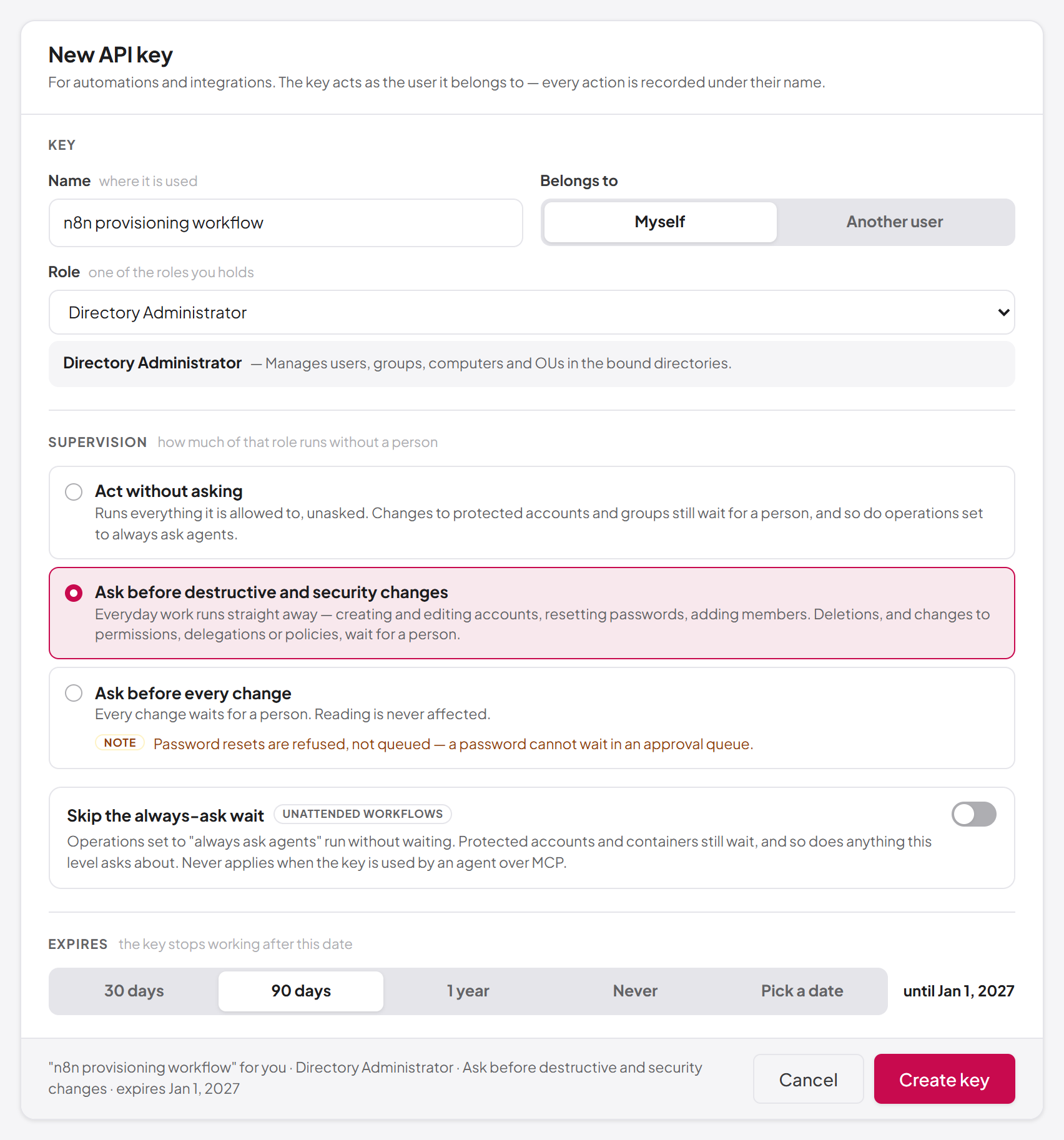
- On the API Keys page, select New API Key.
- In Name, enter a name that says where the key is used, for example
n8n provisioning workflow. The name can be up to 100 characters. - Under Belongs to, keep Myself, or — if you hold
apikeys:create-for-user— choose Another user, search by name or email and select the person. Only active users are listed. Without that permission, Belongs to simply shows your own name. - In Role, choose one of the roles the owner holds. The first role a key can carry is preselected, and the role's description appears under the list.
- Under Supervision, choose how much of that role may run without a person (see the table below). Ask before destructive and security changes is preselected.
- If it is offered and you need it, turn on Skip the always-ask wait (see Skipping the always-ask wait below).
- Under Expires, choose 30 days, 90 days, 1 year (the default), Never, or Pick a date and choose a date from tomorrow onwards, at most ten years ahead. The resulting date is shown beside your choice.
- Check the one-line summary in the footer, then select Create key.
The Create key button stays disabled until the form is complete; the footer then tells you what is missing, for example "Give the key a name to create it." or "Choose a role for the key."
Which roles you can choose
The role list shows the roles the owner holds. Some may be listed but disabled:
- system roles cannot be put on a key — the System Admin role is never assignable to a key.
- grants more than you hold — when you create a key for somebody else, a role of theirs that carries permissions you do not hold yourself cannot be put on the key. Issuing a key is not a way to hand out permissions you do not have.
If the owner holds no role a key can carry, the form says so and the key cannot be created until an administrator assigns a suitable role.
Supervision levels
Supervision decides which directory changes the key may make on its own. It applies to the key, never to people working in the console. Reading is never held back.
| Level | What happens |
|---|---|
| Act without asking | Runs everything the role allows, unasked. Changes to protected accounts and groups still wait for a person, and so do operations set to always ask agents. |
| Ask before destructive and security changes | The default. Everyday work runs straight away — creating and editing accounts, resetting passwords, adding members. Deletions and changes to permissions, delegations or policies wait for a person. |
| Ask before every change | Every change waits for a person. |
Note: At Ask before every change, password resets are refused rather than queued. A password cannot be held in an approval queue, so a key at this level cannot reset passwords at all.
Act without asking is only offered if you hold operations:approve: choosing it pre-approves everything the key will do. Without that permission the form says "Letting a key act without asking needs permission to approve operations." The level also lasts only as long as the owner can approve operations — if the owner loses operations:approve, the key is treated as Ask before destructive and security changes from the next request.
Whatever the level, changes to protected targets (for example members of privileged groups, or objects in a protected container) always wait for a person. For the full rules, see Chapter 10, Operation policies, attribute policies and agent supervision.
Skipping the always-ask wait
An administrator can pin individual directory operations to always ask agents (see Chapter 10). Skip the always-ask wait — marked Unattended workflows — exempts this key from that pin. It is meant for a workflow you have written and reviewed, which runs unattended and cannot wait for anyone.
- It needs
operations:approve, like Act without asking; without that permission the switch is not shown. - It waives the always-ask pin only. Protected accounts and containers still wait, and so does anything the key's own supervision level asks about.
- It is locked at Ask before every change, where everything waits anyway: the page says "Nothing to skip — at "Ask before every change" everything waits."
- It never applies when the key is used by an agent over MCP.
Copying the new key
After you select Create key, the form is replaced by the key itself.
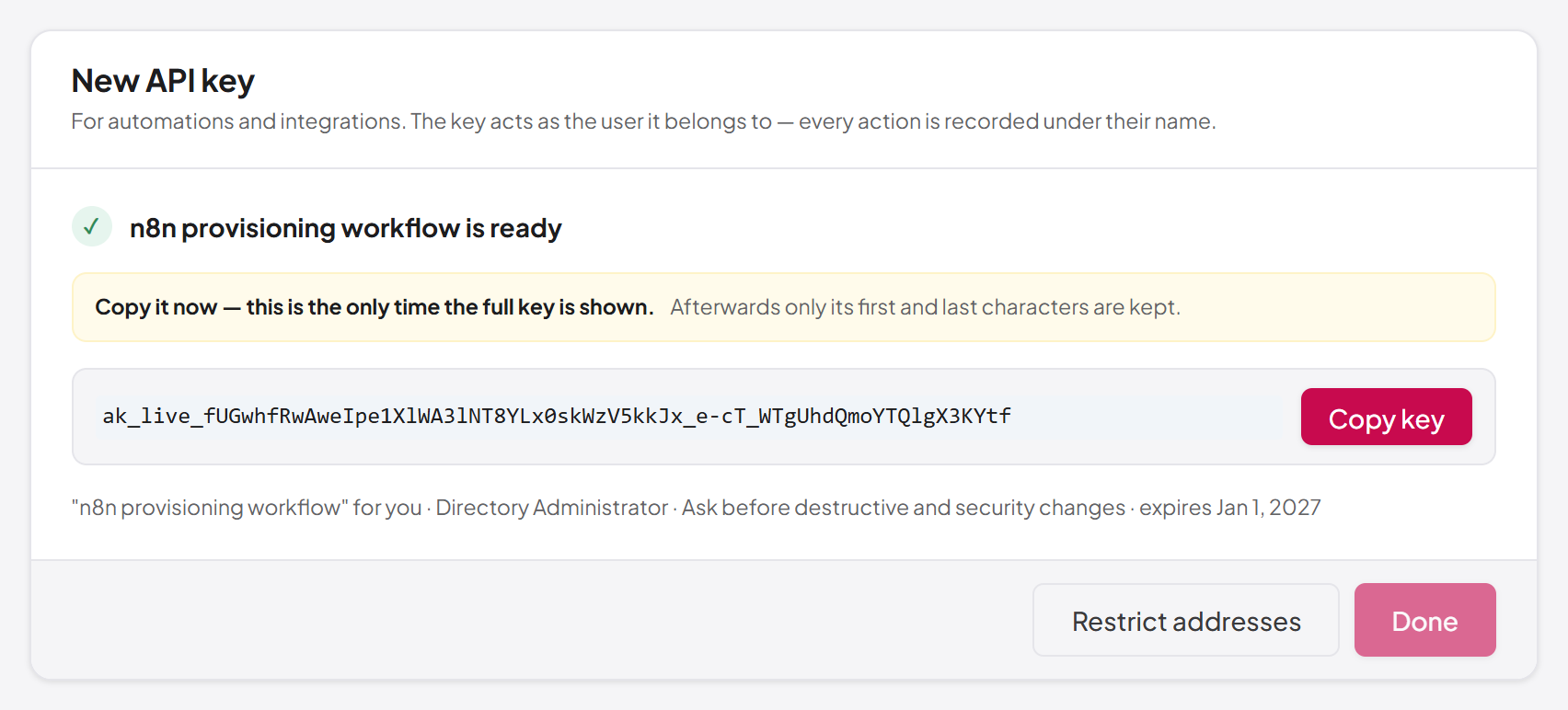
- Select Copy key. The button changes to Copied.
- Store the key in the secret store of the system that will use it, for example an n8n credential or a password vault.
- Select Done to return to the list, or Restrict addresses to go straight to the key's settings page, where you set allowed addresses and link a directory. Restrict addresses is shown only if you hold
apikeys:update.
Done stays disabled until the key has been copied, so you cannot close the page by accident. If your browser refuses to copy, the page says so: select the key text and copy it by hand before you leave.
Important: Once you leave this step, the full key cannot be shown again. If you lose it, revoke the key and create a new one.
Last updated
Thank you for your feedback.