
5.9Directory client settings
Last updated
The Directory client screen sets how the platform talks to Active Directory — for every directory connection at once: how often a directory request is tried when the connection to the domain controller fails, how long it waits before trying again, whether an open connection is checked before it is reused, and which parts of the directory schema are read in advance when the service starts.
These settings used to be made in the setup wizard. They are now made here, and the wizard no longer asks for them.
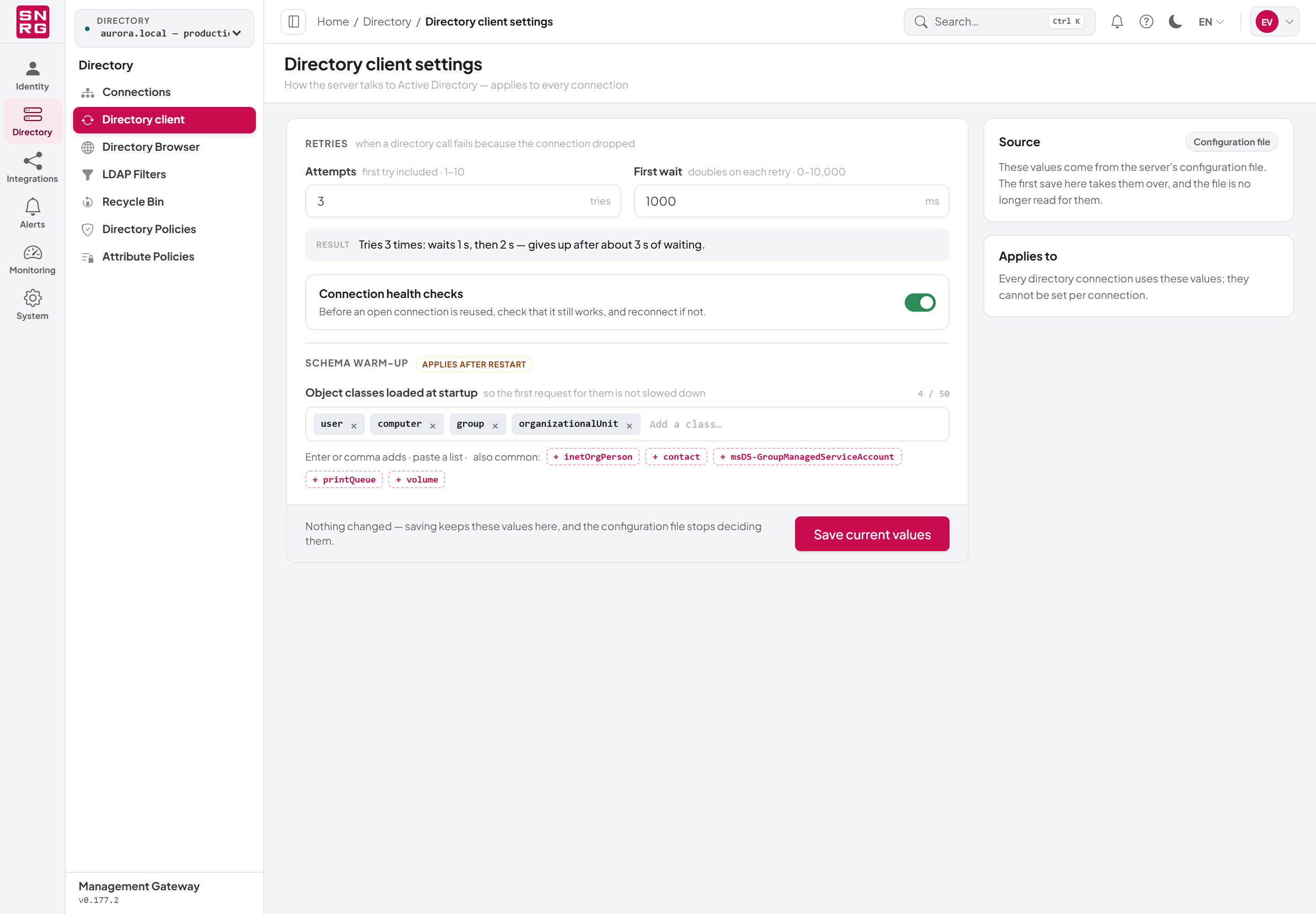
To open the screen, select Directory › Directory client in the navigation. The page title is Directory client settings, with the line "How the server talks to Active Directory — applies to every connection" under it.
The settings are in one card with three parts — Retries, Connection health checks and Schema warm-up — and a footer with the save button (Save settings, or Save current values before the first save — see Before the first save). To the right of the card are up to three short cards:
| Card | What it shows |
|---|---|
| Source | Where the values in force come from: Configuration file until somebody saves this screen, then Saved here with the date, time and account of the last save (see Before the first save below). |
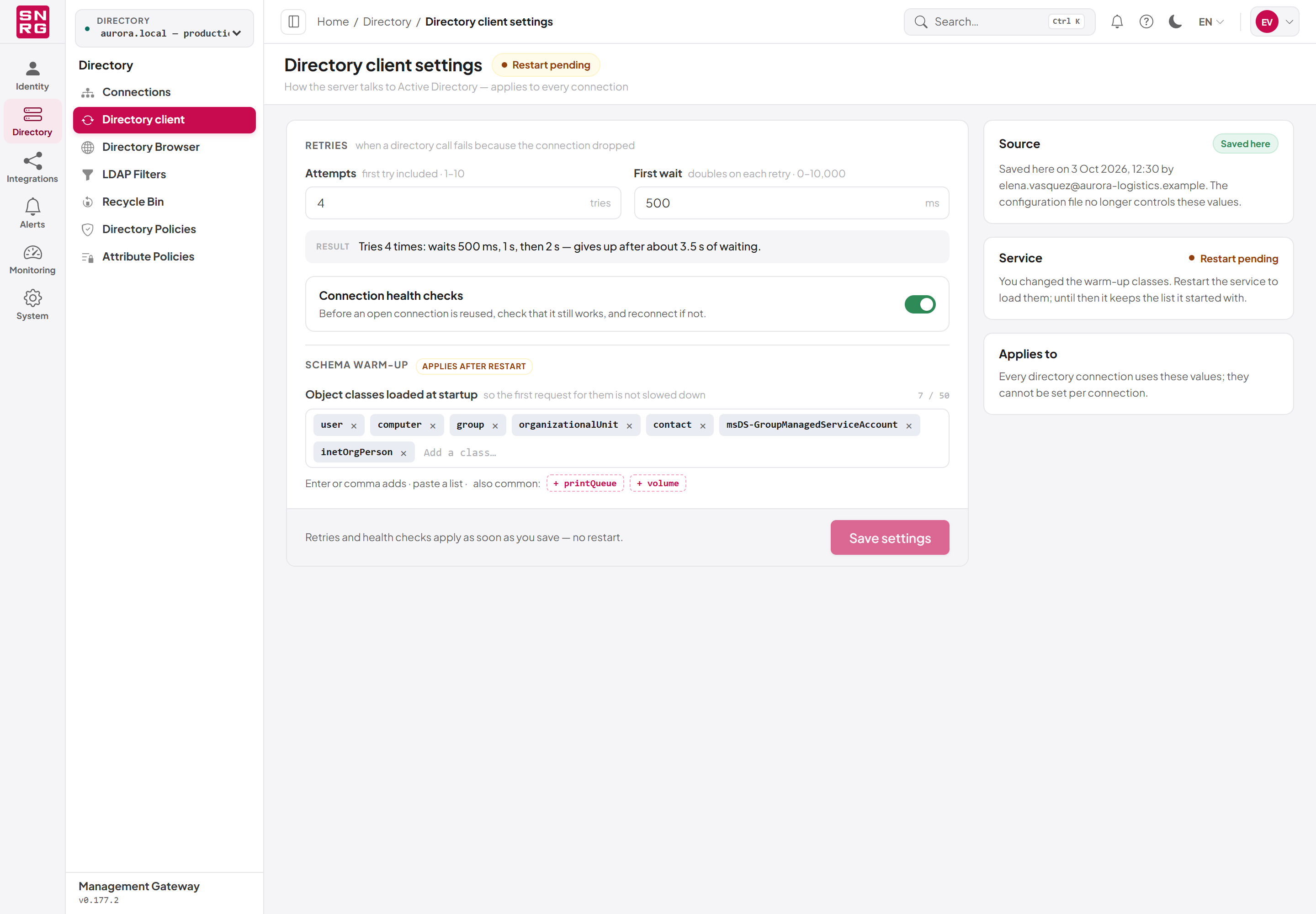
| Service | Shown only after you saved a change to the warm-up list on this page: Restart pending, and a reminder that the service keeps its old list until it is restarted. |
| Applies to | "Every directory connection uses these values; they cannot be set per connection." |
Who can see and change it
| Permission | Allows |
|---|---|
adconnections:read | Opening the screen and seeing the settings in force |
adconnections:update | Changing and saving them |
Without adconnections:update the screen is read-only: the number fields and the health-check switch are greyed out, the class chips have no cross, there is no field for adding a class and no suggestions, there are no Save settings or Cancel buttons, and the footer reads "You can view these settings but not change them." An empty warm-up list then reads "No classes. Nothing is loaded in advance." Without adconnections:read the menu entry does not appear.
Like the rest of connection management, the screen is not licence-gated and works before a licence is activated.
The settings
| Setting | Allowed values | Default | Takes effect | What it does |
|---|---|---|---|---|
| Attempts (under Retries) | 1 to 10 tries | 3 | As soon as you save | How many times a directory request is tried when the connection fails, the first try included. 1 means no retry at all; 3 means the first try and up to two retries. |
| First wait (under Retries) | 0 to 10,000 ms | 1000 ms | As soon as you save | How long the platform waits before the first retry. The wait doubles before each further retry. There is no wait after the last try: the request then fails. |
| Connection health checks | On or off (a switch) | On | As soon as you save | Before an open connection to a domain controller is reused, the platform checks that it still works, and reconnects if it does not. |
| Object classes loaded at startup (under Schema warm-up) | Up to 50 class names | user, computer, group, organizationalUnit | At the next restart of the service | The schema of these Active Directory object classes is read in advance when the service starts, so the first request that needs it is not slowed down. |
Only a failure of the connection itself is retried: the domain controller is down, the domain cannot be found, or the connection broke off. Any other error — a refused permission, an object that does not exist — fails on the first try, whatever Attempts says.
The Result line
Under Attempts and First wait, the Result line works out what the two numbers do together, so you do not have to. It changes as you type. For example:
| Attempts | First wait | Result line |
|---|---|---|
| 3 | 1000 ms | "Tries 3 times: waits 1 s, then 2 s — gives up after about 3 s of waiting." |
| 4 | 500 ms | "Tries 4 times: waits 500 ms, 1 s, then 2 s — gives up after about 3.5 s of waiting." |
| 6 | 1000 ms | "Tries 6 times: waits 1 s, 2 s, 4 s … then 16 s — gives up after about 31 s of waiting." |
| 1 | any | "One try, no retry: a call that fails, fails straight away." |
| 3 | 0 ms | "Tries 3 times back to back, with no wait in between." |
A worked example of the arithmetic: with Attempts 6 and First wait 1000 ms, the request is tried once; after it fails, the platform waits 1 second and tries again, then waits 2, 4, 8 and 16 seconds before the third to sixth tries. That is five waits for six tries, 1 + 2 + 4 + 8 + 16 = 31 seconds of waiting before the request finally fails. With more than four waits the line shows the first three and the last, joined by "…".
When the waits add up to more than 30 seconds, as in that example, a warning appears under the line: "Over 30 s of waiting — a person on a page, or an agent on a tool call, may give up before the last try." You can still save such values. While either field holds a value outside its range, the line reads "Fix the fields above to see what they do together."
Tip: Because the wait doubles, the last tries dominate. The largest values, 10 tries and 10,000 ms, add up to about 85 minutes of waiting for one request. Raise First wait a little rather than Attempts a lot.
Connection health checks
The switch is on by default. When you switch it off, the line "Off: an open connection is reused unchecked, so a dropped one is noticed only when a call fails — and then retried as above." appears beside it.
Note: Connection health checks is not the same as the background checks that keep the Health column of the Connections page current (see 5.6). It only decides whether a connection the platform already has open is tested before it is used again.
Editing the schema warm-up list
The classes are shown as chips in one field, with the count at the right above it, for example "4 / 50".
- To add a class, click into the field ("Add a class…"), type its LDAP name and press Enter, or type a comma or a semicolon after it. What you typed is also added when you leave the field, so it is not lost on the way to Save settings.
- To add several at once, paste a list separated by commas, semicolons, spaces or line breaks. The names are added in order.
- To add a common class with one click, select it after "also common:" under the field. The suggestions are
inetOrgPerson,contact,msDS-GroupManagedServiceAccount,printQueueandvolume; a suggestion disappears once that class is in the list. - To remove a class, select the cross on its chip. Pressing Backspace in the empty field removes the last class in the list.
A class name must start with a letter and contain only letters, digits and hyphens, for example inetOrgPerson or msDS-GroupManagedServiceAccount. Each name may appear only once; names are compared without regard to case. When a name cannot be added, it stays in the field — together with any names pasted after it — and the reason appears underneath:
| Message | Cause |
|---|---|
| "user" is already in the list. | The class is listed already (in any combination of capitals). |
| "my_class" is not a class name: start with a letter, then use only letters, digits and hyphens. | The name contains an underscore, a dot or another character a class name cannot have, or starts with a digit or a hyphen. (A space separates two names instead.) |
| At most 50 classes can be listed. | The list is full. |
When the list holds 50 classes the field reads "The list is full" and the suggestions are hidden. An empty list is allowed: the schema is then read the first time a request needs it.
Adding many classes makes start-up slower; removing a class makes the first request that needs it slower.
Important: A change to the warm-up list is saved at once but used only from the next restart of the service (the IIS application pool). The section carries the tag Applies after restart; while such a change is unsaved, the footer adds "· the class list takes effect after a restart"; and once you have saved it, a Restart pending chip appears next to the page title and the Service card reads "You changed the warm-up classes. Restart the service to load them; until then it keeps the list it started with."
The Restart pending chip and the Service card reflect only a save made on this page since you opened it. They do not appear for a change somebody else saved, and they do not disappear when the service is restarted — reload the page after the restart and they are gone.
Before the first save: "Configuration file"
Until somebody saves this screen, the values in force come from the server's configuration file (appsettings.Production.json, sections ActiveDirectory and SchemaCache), and from the built-in defaults above for anything the file does not name. The Source card then shows the chip Configuration file and the text "These values come from the server's configuration file. The first save here takes them over, and the file is no longer read for them."
The first save stores the values in the platform's database. From then on the chip reads Saved here, the card reads, for example, "Saved here on 3 Oct 2026, 12:30 by elena.vasquez@aurora-logistics.example. The configuration file no longer controls these values.", and the configuration file is no longer read for these four settings: editing it has no effect. If the account that saved no longer exists, the card names "an unknown user".
An installation upgraded from a version whose setup wizard set these values therefore keeps them — they are shown here from the file, and saving once takes them over.
To take the file's values over unchanged, select Save current values. While the source is Configuration file and nothing on the page has been edited, that is what the save button reads, and the footer says "Nothing changed — saving keeps these values here, and the configuration file stops deciding them." The values in force do not change, the Source card then reads Saved here, and the save appears once in the operations log. Once the values are saved here, the button reads Save settings again and stays disabled until something differs from what is in force.
Important: Re-running the setup wizard of this version rewrites the configuration file without these sections. If your file holds values that differ from the defaults, select Save current values on this screen before you re-run the wizard (see Chapter 2, Changing the configuration later).
Saving a change
To change the settings:
- Go to Directory › Directory client.
- Change the values you need. The footer counts what differs from the values in force, for example "2 unsaved changes", and a Cancel button appears.
- Check the Result line if you changed the retries.
- Select Save settings. You see "Directory client settings saved.", the Source card shows Saved here with the time and your account, and the footer returns to "Retries and health checks apply as soon as you save — no restart."
Select Cancel instead to go back to the values last loaded from, or saved to, the server; the button is shown only while there are unsaved changes.
A number outside the allowed range, a fraction or an empty number field is marked "Enter a whole number from 1 to 10." (or the range of that field), the footer adds "· fix the marked fields", and Save settings stays disabled until it is corrected. If the server refuses the save, its reason appears above the footer and in a pop-up message.
If something is wrong
| Symptom | Likely cause |
|---|---|
| The values shown are not the ones in your configuration file | The screen has been saved at some point, and from then on the file is not read. The Source card shows Saved here and who saved it. |
| Save settings stays greyed out | The values are already saved here and nothing differs from them, a field is marked as out of range, or your role lacks adconnections:update (the footer then says you can only view the settings). While the source is still Configuration file, the button reads Save current values and is available without any change. |
| A request to an unreachable domain controller takes a long time to fail | The retries add up. Read the Result line: with 6 tries and a first wait of 1000 ms a request waits about 31 seconds before it fails. Lower Attempts or First wait. |
| A change to the warm-up list seems to have no effect | The list is read only when the service starts. Restart the application pool. |
| Restart pending is still shown after the restart | The page cannot see the restart. Reload the page. |
| A class name stays in the field with a message under it | The name is a duplicate, is not a valid class name, or the list already holds 50 classes. The message says which. |
| "The directory client settings could not be saved." | The server refused the values (the message above the footer names the reason) or could not be reached. |
| The menu entry is missing | Your active role does not hold adconnections:read. |
Last updated
Thank you for your feedback.