
13.3What an agent can do
Last updated
The tools
The server offers 95 tools, grouped by area below. Tools that only read are marked read-only to the client; clients may run those without asking you first. Which tools an agent can actually use depends on its permissions and on whether it has read-only or read-and-write access.
Users
| Tool | What it does |
|---|---|
SearchAdUsers | Search users with an LDAP filter, page by page |
GetAdUser | Get a user by object GUID |
LookupAdUser | Find a user's GUID from a logon name, UPN or common name |
GetAdUserGroups | List the groups a user belongs to |
GetAdAccountAuthorizationGroups | List every group in an account's access token (effective membership) |
CreateAdUser | Create a user |
UpdateAdUser | Update a user |
DeleteAdUser | Delete a user |
EnableAdUser / DisableAdUser | Enable or disable a user account |
UnlockAdUser | Clear a lockout |
ResetAdUserPassword | Reset a user's password |
ChangeAdUserPassword | Change a password by supplying the current one |
AssignUserToGroup / AssignUserToGroups | Add a user to one or several groups |
UnassignUserFromGroup / UnassignUserFromGroups | Remove a user from one or several groups |
ClearUserGroups | Remove all of a user's group memberships |
Groups
| Tool | What it does |
|---|---|
SearchAdGroups | Search groups with an LDAP filter |
GetAdGroup | Get a group by object GUID |
GetAdGroupMembers | List a group's members |
CreateAdGroup / UpdateAdGroup / DeleteAdGroup | Create, update or delete a group |
AssignMemberToGroup / UnassignMemberFromGroup | Add or remove a member |
ClearGroupMembers | Remove all members of a group |
Computers
| Tool | What it does |
|---|---|
SearchAdComputers | Search computers with an LDAP filter |
LookupAdComputer | Find a computer's GUID from its DNS host name or logon name |
GetAdComputer | Get a computer by object GUID |
CreateAdComputer / UpdateAdComputer / DeleteAdComputer | Create, update or delete a computer account |
EnableAdComputer / DisableAdComputer | Enable or disable a computer account |
ResetAdComputerPassword | Reset a computer account's password |
Accounts
| Tool | What it does |
|---|---|
SearchAdAccountsByState | Find user or computer accounts that are locked out, disabled, expired, inactive and so on |
SetAdUserAccountExpiration | Set or clear a user account's expiry date |
SetAdComputerAccountExpiration | Set or clear a computer account's expiry date |
Organizational units
| Tool | What it does |
|---|---|
SearchAdOus | Search organizational units |
GetAdOu | Get an organizational unit by object GUID |
CreateAdOu / UpdateAdOu / DeleteAdOu | Create, update or delete an organizational unit |
GetAdOuAccountStatePlan | Preview enabling or disabling the accounts in an organizational unit, without changing anything |
EnableAdOuAccounts / DisableAdOuAccounts | Enable or disable the accounts in an organizational unit, as one batch of at most 100 accounts |
Any directory object
| Tool | What it does |
|---|---|
SearchAdObjects | Search any objects by LDAP filter and object class |
LookupAdObjectByDn | Find any object from its distinguished name |
GetAdObject | Get any object by object GUID |
CreateAdObject / UpdateAdObject / DeleteAdObject | Create, update or delete a generic object |
MoveAdObject | Move an object to another container |
RenameAdObject | Rename an object |
Password policies
| Tool | What it does |
|---|---|
GetAdDefaultPasswordPolicy / UpdateAdDefaultPasswordPolicy | Read or change the default domain password policy |
GetAdFineGrainedPasswordPolicies / GetAdFineGrainedPasswordPolicy | List fine-grained password policies, or read one |
CreateAdFineGrainedPasswordPolicy / UpdateAdFineGrainedPasswordPolicy / DeleteAdFineGrainedPasswordPolicy | Create, replace or delete a fine-grained password policy |
GetAdPasswordPolicySubjects | List who a fine-grained policy applies to |
AddAdPasswordPolicySubjects / RemoveAdPasswordPolicySubjects | Apply a fine-grained policy to users or groups, or stop applying it |
GetAdUserResultantPasswordPolicy | Show the policy that actually governs a user, and when their password expires |
Security and delegation
| Tool | What it does |
|---|---|
GetAdObjectAcl | Read an object's decoded access control list |
ListAdDelegationTemplates | List the named delegation templates |
GetAdObjectDelegations | Show which delegation templates are present on a container |
ApplyAdDelegation / RevokeAdDelegation | Delegate control of a container to a trustee with a template, or remove it |
SetAdOrganizationUnitDeletionProtection | Protect an organizational unit from accidental deletion, or allow its deletion |
GetAdSpns / SetAdSpns | Read or replace the service principal names on a user or computer |
Service accounts
| Tool | What it does |
|---|---|
ListAdServiceAccounts / GetAdServiceAccount | List managed and group managed service accounts, or read one |
CheckAdKdsRootKeyReadiness | Check whether the forest can host a group managed service account |
CreateAdServiceAccount / UpdateAdServiceAccount | Create or update a service account |
GetAdServiceAccountPasswordRetrievalPrincipals / SetAdServiceAccountPasswordRetrievalPrincipals | Read or replace who may retrieve a group managed service account's password |
GetAdComputerServiceAccounts | List the standalone managed service accounts linked to a computer |
Domain and forest information
| Tool | What it does |
|---|---|
GetAdDirectoryContext | Everything below in one call |
GetAdDomain / GetAdForest / GetAdRootDse | Domain, forest and RootDSE details |
GetAdDomainControllers | Domain controllers, their sites and roles |
GetAdTrusts | Domain trusts and their properties |
GetAdSites / GetAdSubnets / GetAdSiteLinks | Replication sites, subnets and site links |
GetAdOptionalFeatures | Optional features, such as the Active Directory Recycle Bin |
GetAdKdsRootKeys | Key Distribution Service root keys |
Saved searches and operations
| Tool | What it does |
|---|---|
SearchBySavedSearch | Run a saved LDAP filter by its GUID (see Chapter 8, Saved LDAP filters) |
GetAdOperationStatus | Follow up on a change that was queued for approval |
The exact list and wording an agent sees is on the MCP Tools screen. Some capabilities are deliberately not offered to agents at all, for example the REST API's multi-object batch requests, raw access control entry editing and approving operations.
When a change waits for approval
When an agent's change has to wait for a person, the tool does not perform it. Instead it answers with a pending result such as:
{
  "status": "pendingApproval",
  "code": "Operation.ApprovalRequired",
  "operationId": "8d1f6c2e-4b5a-4e8f-9a37-0c2d5e6f7a81",
  "displayName": "Delete User",
  "expiresAt": "2026-10-04T09:30:00Z",
  "canApprove": false,
  "reason": "Level",
  "reasonDetail": "This agent asks before destructive and security changes.",
  "message": "… Nothing has been changed yet. Do not call this tool again for the same change: call GetAdOperationStatus with this operationId …"
}
What the fields mean:
- operationId — the handle for the queued operation.
- reason and reasonDetail — why it is waiting: a protected target (
ProtectedTarget), an operation pinned to always ask agents (Pinned), the agent's supervision level (Level), or an unusual number of recent destructive changes by the same credential (Volume). They call for different answers — wait, change the request, or ask an administrator about the agent's level. - canApprove — whether the person the agent acts for may approve it. If they may, and may also open the operations log, an approvalUrl links to the operation in the console, where they sign in and decide. The agent itself can never approve.
There is deliberately no success field: the change neither failed nor succeeded yet, and retrying would put a second request in front of the approver.
The agent follows up with GetAdOperationStatus and the operationId. Its status is WaitingToApprove until somebody decides, then Success, Rejected, Cancelled (the requester withdrew it) or Failed (which includes a request that expired undecided). Once the change has run, a result block names the object it affected; for a create, result.entityId is the new object's GUID. An agent can only read the status of operations its own person requested. The tool needs operations:waiting:list.
Approvers see the queued operation, the agent's name and the reason in the operations log and in their notifications (see Chapter 9, Operations log, approvals and waiting operations).
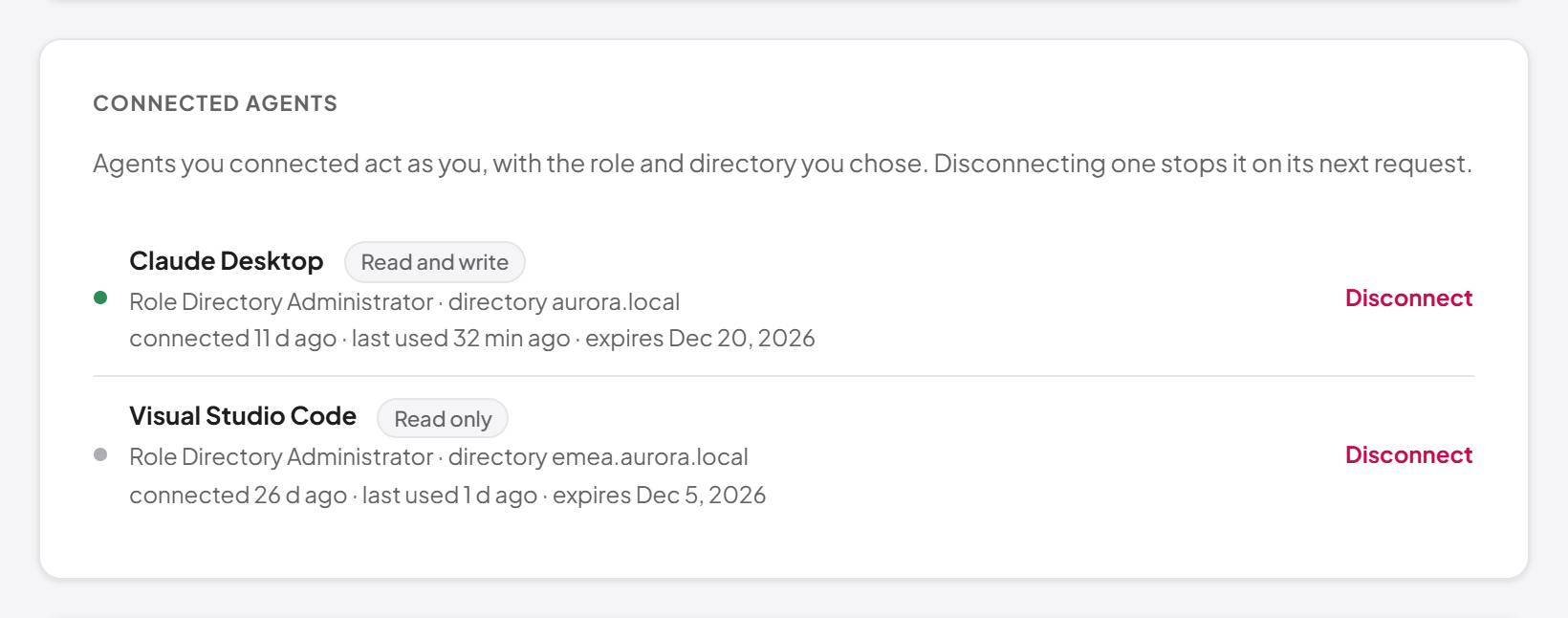
Your connected agents
Every person can see and disconnect the agents they connected.
- Open My profile from the menu under your name (the page is at
/dashboard/profile). - Go to the Connected agents section.
Last updated
Thank you for your feedback.