
11.2Platform users
Last updated
The Users screen
The Users screen lists every account that can sign in to the platform. It is found in the navigation under Identity & Access and its address is /dashboard/users.
Who can use it: users:list to open the list; users:create, users:update and users:delete for the corresponding actions. Opening an account's page in the console requires users:update.
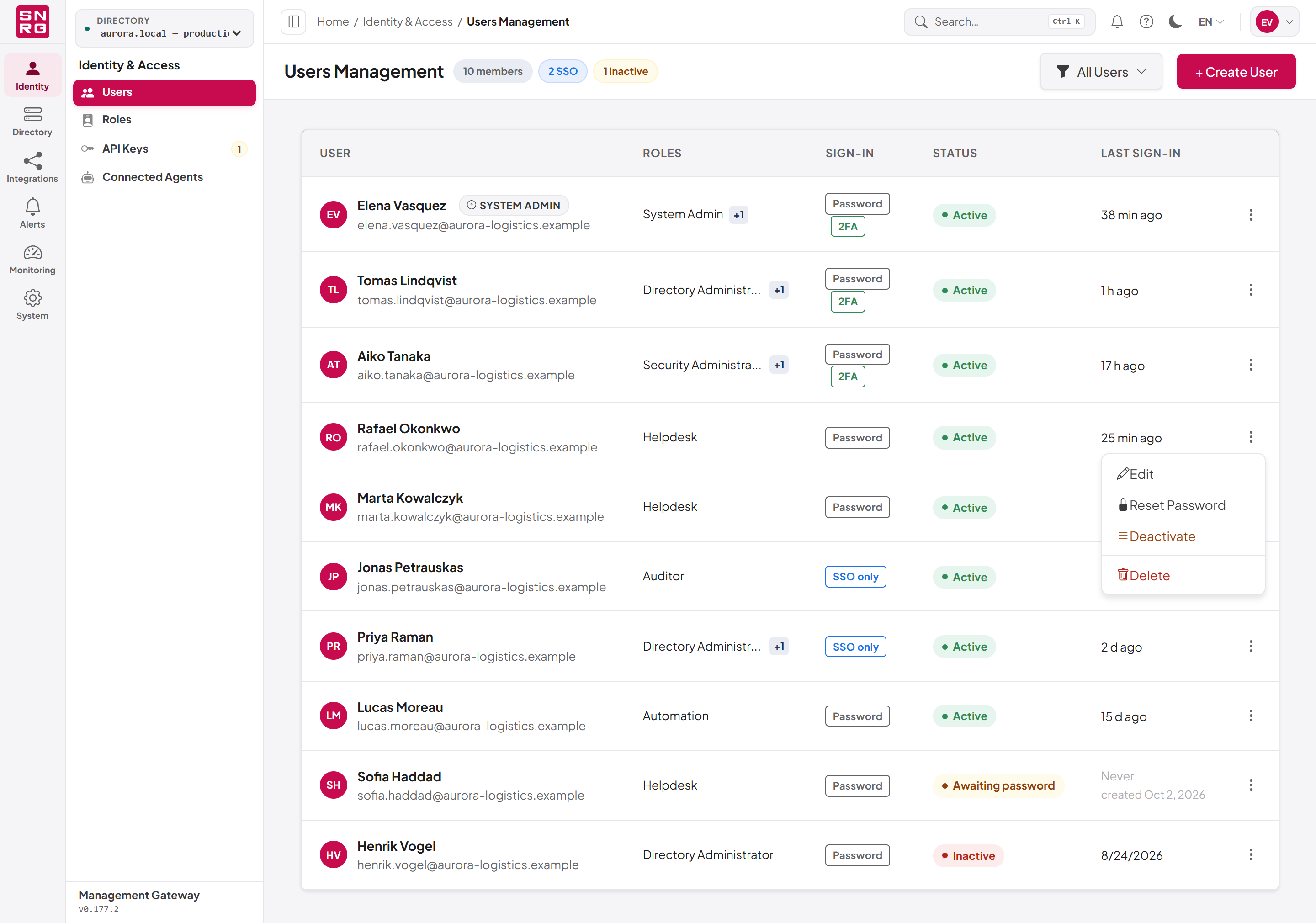
| Column | Content |
|---|---|
| User | Name and email address; a System Admin badge when the account holds that role. |
| Roles | The first role and "+N" for any others; hover to see them all. No role when none is assigned. |
| Sign-in | Password or SSO only, plus 2FA when two-factor sign-in is on. |
| Status | Active, Inactive or Awaiting password. |
| Last sign-in | How long ago the person last signed in, or Never with the creation date. |
Each row has an actions menu (the three dots) with Edit, Reset Password, Deactivate or Activate, and Delete. Edit, Reset Password and Deactivate/Activate need users:update, and Delete needs users:delete. Reset Password and Delete are not offered on your own row. With users:update, you can also double-click a row to open the account. The list is paged; use Previous and Next below it.
Creating a user
You can create an account in one of two ways:
- Email a link to choose their own (recommended) — the account is created without a password, and the person receives a single-use link to choose one. Nobody else ever knows the password. This option needs an active email provider (see Chapter 16, Notifications); without one it is shown as unavailable.
- Set a password now — you choose the password and pass it on to the person yourself.
Who can use it: users:create. Assigning roles additionally requires that you hold every permission in each role you assign, and only system scope can assign System Admin.
To create a user:
- Open Users and click + Create User.
- Under Identity, enter First name, Last name and Email. The email address is the person's sign-in name.
- Under Password, choose Email a link to choose their own or Set a password now. If you set a password, enter it in Password (at least 8 characters).
- Under Access, tick one or more Roles. After signing in, the person picks which role to work in. If you tick none, a warning reminds you that the person can sign in but will see nothing until a role is assigned.
- Click Create User.
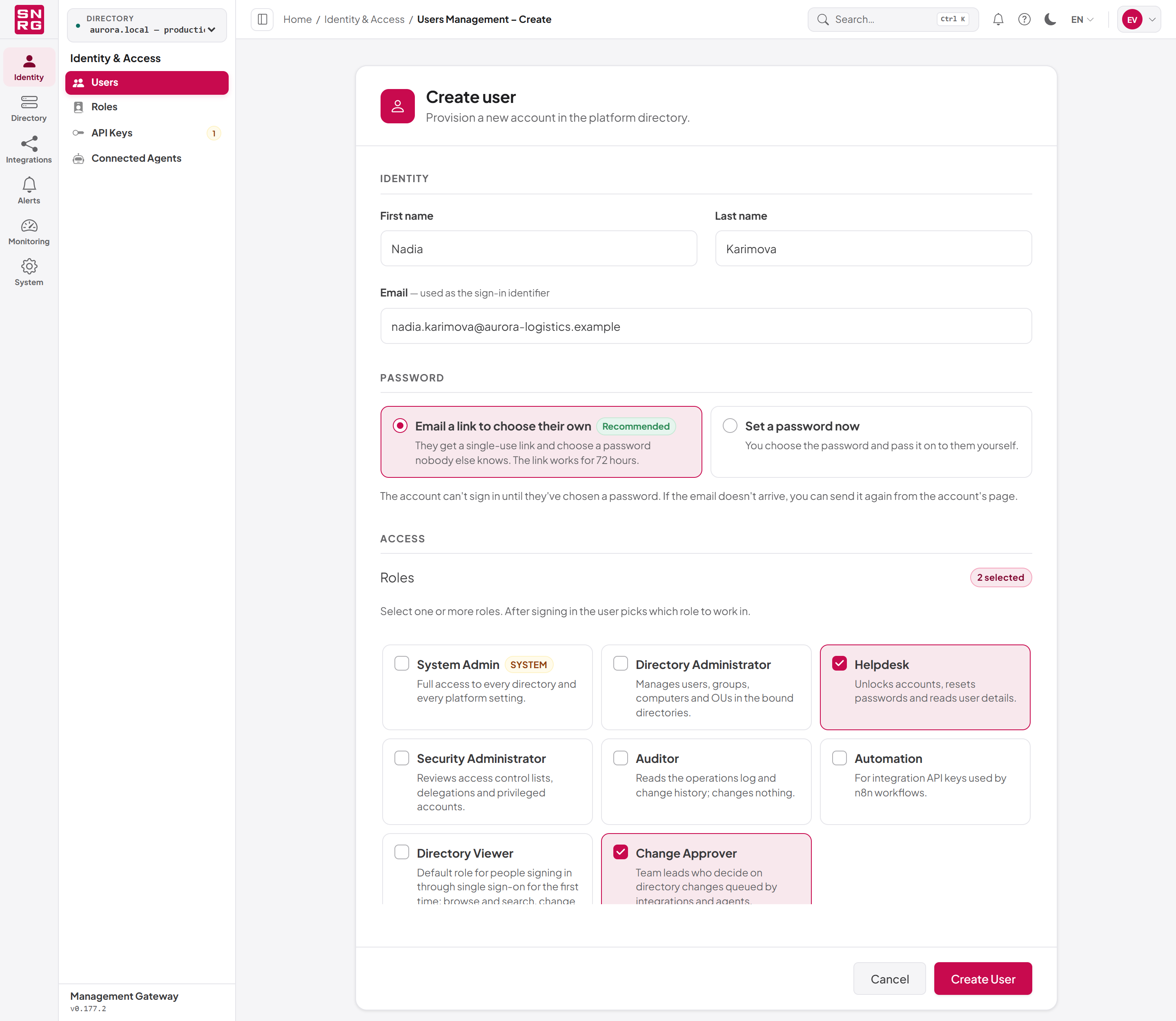
An account created by email shows the status Awaiting password until its person chooses a password. It cannot sign in before then.
| Field | Required | Notes |
|---|---|---|
| First name | Yes | |
| Last name | Yes | |
| Yes | Must be a valid address; used to sign in and for password reset emails. | |
| Password method | Yes | Email link or set now. Exactly one. |
| Password | When setting now | At least 8 characters. Use a strong password. |
| Roles | No | One or more roles. A user without a role can sign in but sees nothing. |
Note: Accounts are also created automatically when someone signs in for the first time through single sign-on, if that is configured. Such accounts are managed by the identity provider. See Chapter 17, Single sign-on.
Editing a user
To open an account, click Edit in its row menu or double-click the row. The account page (address /dashboard/users/{id}/edit) shows the name, status badges (Active or Deactivated, Awaiting password setup, 2FA), when the account was created and when it last signed in. ← Users returns to the list.
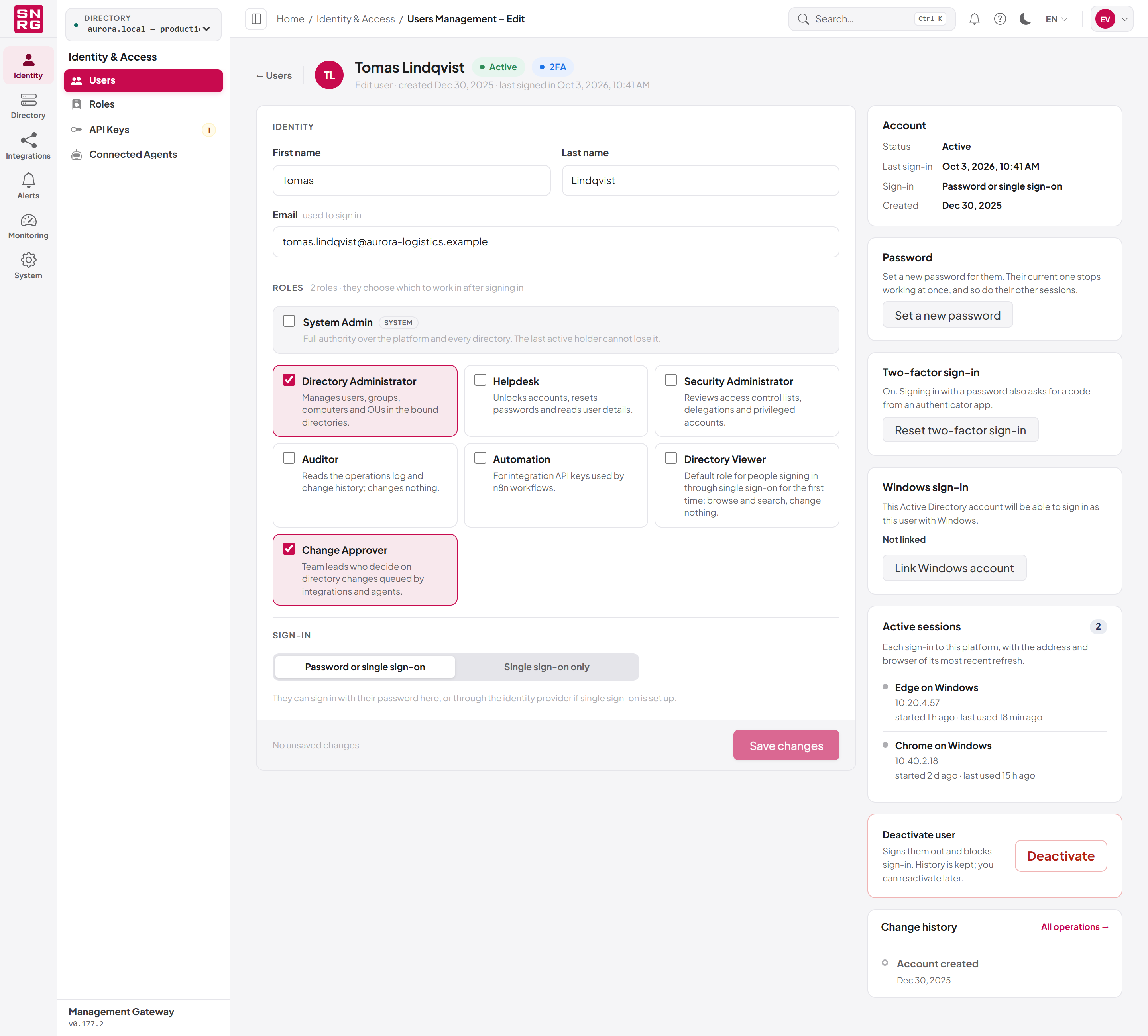
- Identity — first name, last name and email. For an account provisioned through single sign-on, these are managed by the identity provider and cannot be edited here.
- Roles — tick or untick roles. The count shows how many the person holds.
- Sign-in — Password or single sign-on, or Single sign-on only. "Single sign-on only" turns password sign-in off for this account.
To save:
- Make your changes. The footer shows how many unsaved changes there are.
- Click Save changes, or Cancel to discard them.
Rules that apply when editing:
- In the console, changing a user's roles requires
roles:updatein addition tousers:update. Without it the roles are shown read-only with the note "Changing a user's roles needs permission to edit roles." - On your own account, you can give up roles you hold but cannot add any; another administrator must do that. If you remove the role you are currently working in, saving ends it for your session and you pick another.
- System Admin shows a padlock ("Only someone working as System Admin can give or take this role.") unless you are working in system scope.
- An account that holds System Admin is read-only unless you are in system scope ("This account holds System Admin, so only someone working as System Admin can change it.").
- A deactivated account is read-only until you reactivate it.
Changing someone's email address
Because a password reset email goes to the account's address, the email address works like a credential: whoever controls the mailbox can set the password. For that reason:
- Changing another person's email requires that you hold at least the permissions their roles grant, as for resetting their password.
- You cannot change your own email here. Change it from your profile, which asks for your current password (see Chapter 3, Signing in and your account). The server answers this route with the error code
Users.ChangeOwnEmailFromProfile. - The previous address is told about the change. The page warns: "They will sign in with the new address from the next sign-in; the old one stops working."
Switching an account to single sign-on only
Switching Sign-in to Single sign-on only turns off password sign-in. Because this can turn an account awaiting password setup into one that single sign-on adopts, it requires that you hold at least the permissions the account's roles grant.
Resetting a user's password
An administrator can set a new password for another person. Their current password stops working immediately, and so do their other sessions and connected agents.
Who can use it: users:update, not on your own account, with at least the permissions the account's roles grant. For an account holding System Admin, system scope is required. It is not available for accounts that sign in only through single sign-on — their password is managed by the identity provider.
To reset a password:
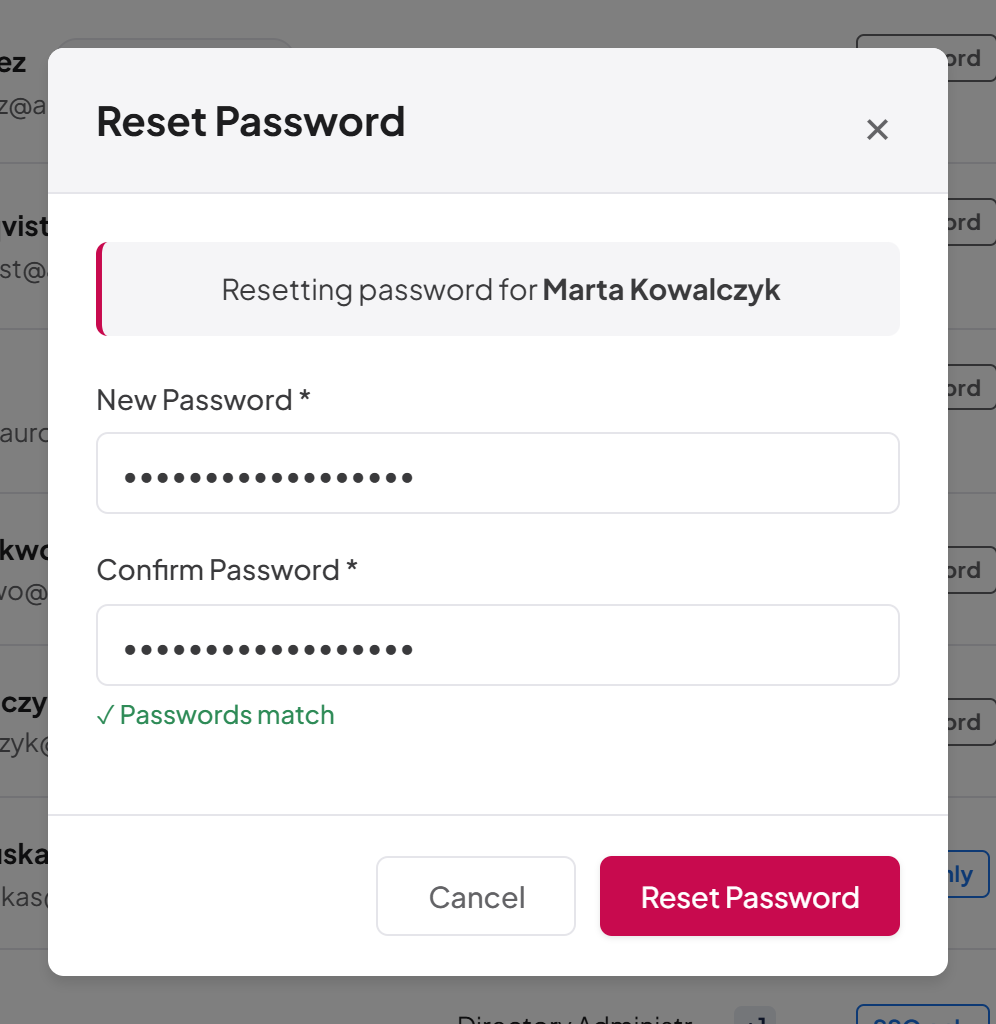
- In the Users list, open the row menu and click Reset Password — or, on the account page, click Set a new password in the Password panel.
- In the Reset Password dialog, enter the New Password (at least 8 characters) and enter it again in Confirm Password. The dialog shows whether the two match.
- Click Reset Password.
Tip: People can also reset a forgotten password themselves from the sign-in page when an email provider is active (see Chapter 3, Signing in and your account).
Resending a password setup link
While an account is Awaiting password, the Password panel on its page says "No password yet. They choose one from the link we emailed them, and can't sign in until they do."
To send a new link:
- Open the account.
- In the Password panel, click Resend setup email.
- A note confirms "A new link is on its way to address".
Sending a new link cancels every earlier link for the account. To prevent flooding a mailbox, at most three setup or reset emails are sent per account per hour; beyond that the page says "Too many setup emails for this account. Please try again later." If no email provider is active, the button is not offered and the panel says "A new link can be emailed once an email provider is active."
Instead of emailing a link, you can click Set a password for them instead and set a password with the Reset Password dialog.
Who can use it: users:update, only for an active account still awaiting setup, never your own, with the same system-scope and permission rules as a password reset. The REST route is POST /users/{id}/password-setup-link.
Resetting a user's two-factor sign-in
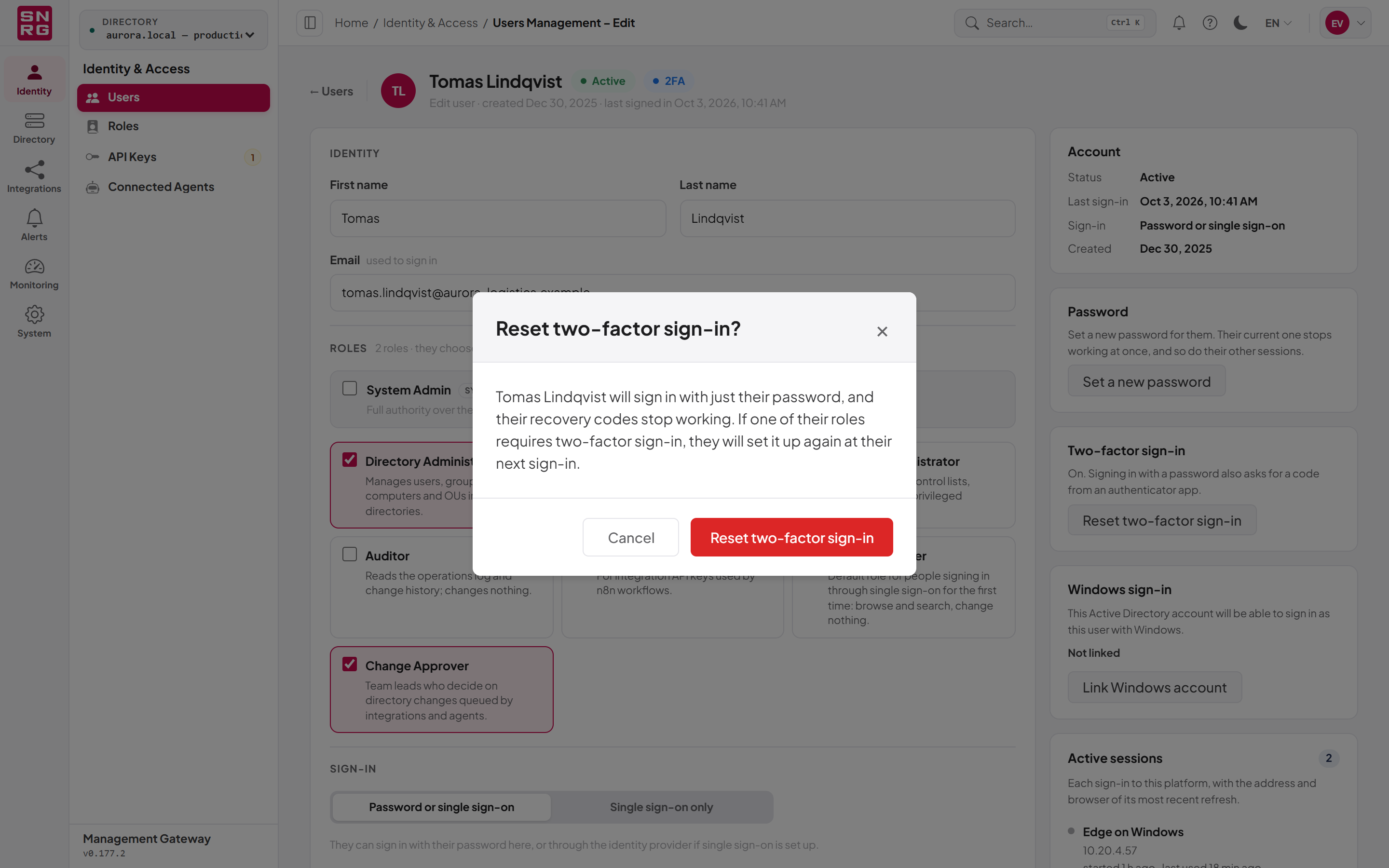
If someone loses the device with their authenticator app and their recovery codes, an administrator can reset their two-factor sign-in. The person then signs in with just their password, and their recovery codes stop working. If one of their roles requires two-factor sign-in, they are asked to set it up again at their next sign-in.
Who can use it: users:update, in a browser session, never on your own account, with at least the permissions the account's roles grant; system scope for an account holding System Admin. The REST route is POST /users/{id}/two-factor/reset, available only to the console.
To reset two-factor sign-in:
- Open the account. The Two-factor sign-in panel shows whether it is on.
- Click Reset two-factor sign-in.
- Confirm with Reset two-factor sign-in in the dialog.
To manage your own two-factor sign-in, use your profile (see Chapter 3, Signing in and your account).
Linking a Windows account
When Windows sign-in is set up (see Chapter 17, Single sign-on), a person can sign in with their Windows session only if an administrator has linked their platform account to their Active Directory account. Nothing is matched automatically by email address or user name.
The Windows sign-in panel on the account page shows the linked account, or Not linked. It appears when the licence includes the single sign-on module and you hold users:read.
Who can use it: users:update, in a browser session. You cannot link your own account outside system scope ("Ask another administrator to link your own account."). For an account holding System Admin, system scope is required. You must hold at least the permissions the account's roles grant — including the roles that the Windows account's groups will add at its first Windows sign-in.
To link a Windows account:
- Open the platform account.
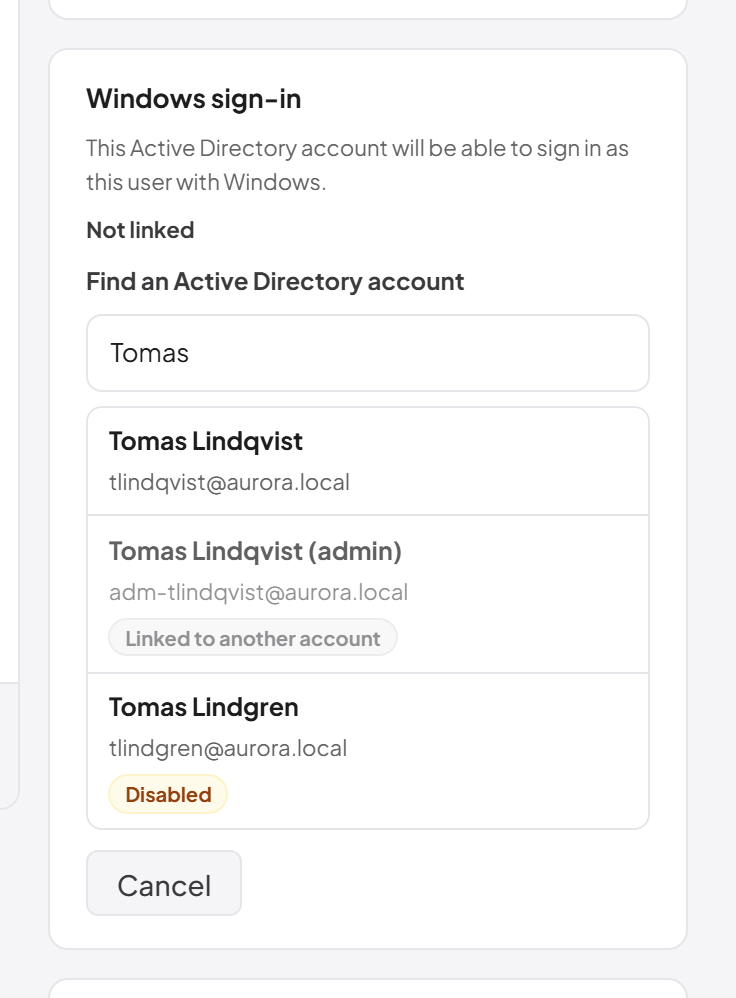
- In the Windows sign-in panel, click Link Windows account (or Link a different account).
- In Find an Active Directory account, type a name, logon name or email.
- Pick the account from the results. Accounts are searched only in the directory connections trusted for Windows sign-in that your role may use. Results are tagged Disabled, Linked to another account or Linked here where relevant.
- The panel confirms "Windows account linked."
Important behaviours:
- The link follows the Active Directory account itself, so it survives a rename or a move within the directory.
- Each Active Directory account can be linked to only one platform account.
- The panel warns if the linked account can no longer be found, is disabled in Active Directory, or cannot be checked because no trusted connection is reachable. A disabled Active Directory account cannot sign in.
Active sessions
When you work in system scope, the account page shows an Active sessions panel: each sign-in to the platform, with the browser and address of its most recent refresh and when it started and was last used. The panel is for information.
To end another person's sessions, reset their password or deactivate the account; both end every session at once. People can end their own sessions individually from their profile.
Deactivating and reactivating a user
Deactivating an account blocks sign-in while keeping the account and its history. Deactivation:
- ends the person's open sessions immediately;
- stops their API keys and connected agents on their next request;
- records your reason with the account and in the operations log.
Who can use it: users:update. You cannot deactivate the last active holder of System Admin, and only system scope can deactivate an account holding System Admin.
To deactivate a user from the list:
- In the Users list, open the row menu and click Deactivate.
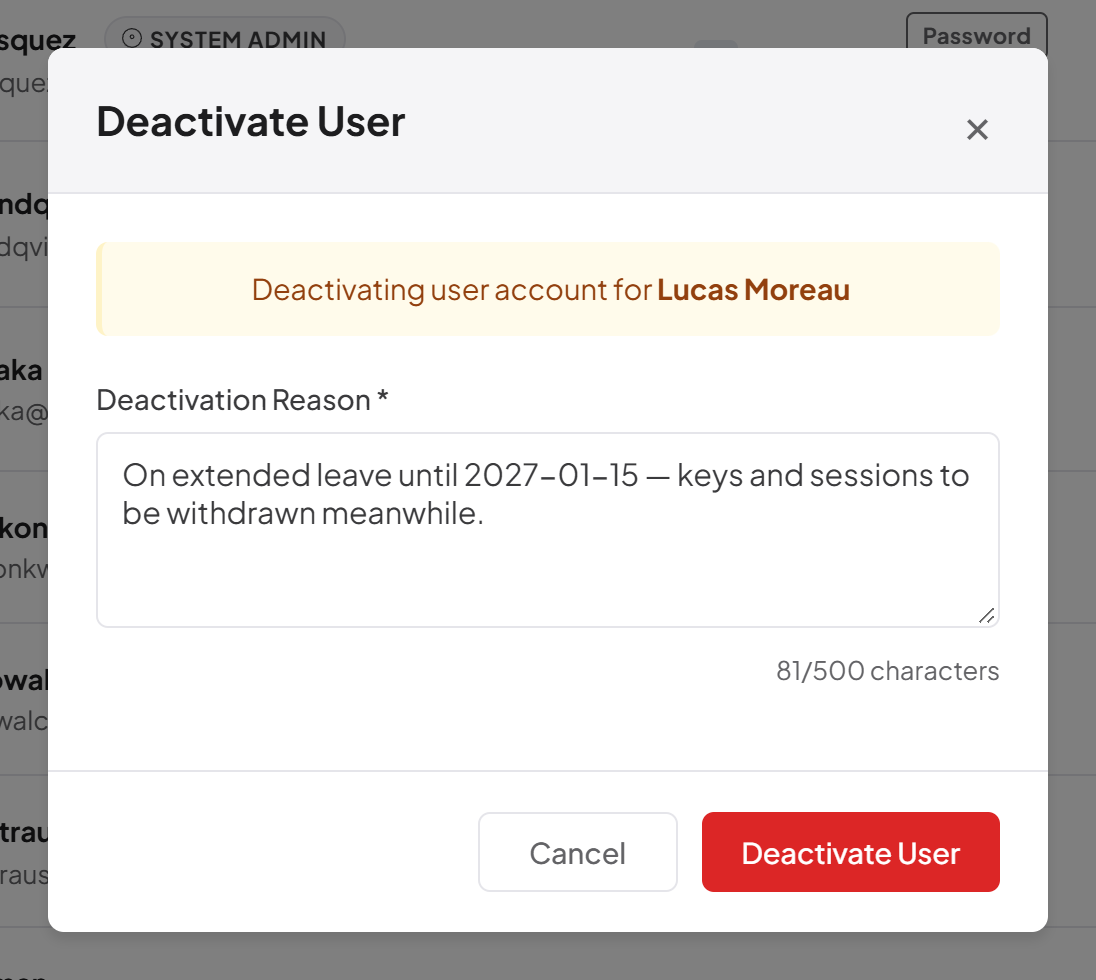
- In the Deactivate User dialog, enter a Deactivation Reason (required, up to 500 characters).
- Click Deactivate User.
To reactivate an account, click Activate in the row menu and confirm, or click Reactivate on the account page.
Note: Deactivation is designed to keep working even if the audit store is temporarily unavailable, so that you can always withdraw access in an emergency.
Deleting a user
Deleting removes the platform account permanently. It cannot be undone. Prefer deactivation if you may need the account again or want to keep it visibly in the user list.
Who can use it: users:delete. You cannot delete your own account or the last active holder of System Admin, and only system scope can delete an account holding System Admin.
To delete a user:
- In the Users list, open the row menu and click Delete.
- The Delete user dialog asks "Are you sure you want to delete this user? This action cannot be undone." Confirm with Delete.
Deleting is available only from the list; the account page has no delete action.
Change history of an account
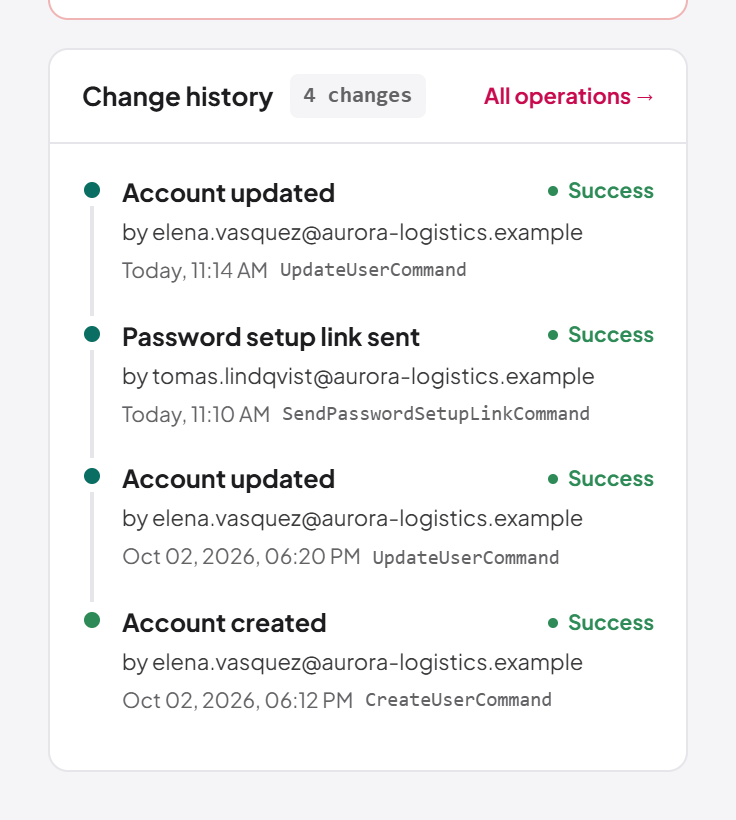
The account page includes a Change history panel listing, for example, edits, password resets by an administrator, deactivations and reactivations, Windows links, roles updated from Active Directory groups, password setup links sent, and two-factor changes. Use All, Changes or Failures to narrow it, or All operations → to open the full operations log. The panel requires audit:list.
Last updated
Thank you for your feedback.