
3.2The sign-in page
Last updated
Open the address of your SYNERGY Management Gateway installation in a browser. If you are not signed in, you are taken to the sign-in page (/login).
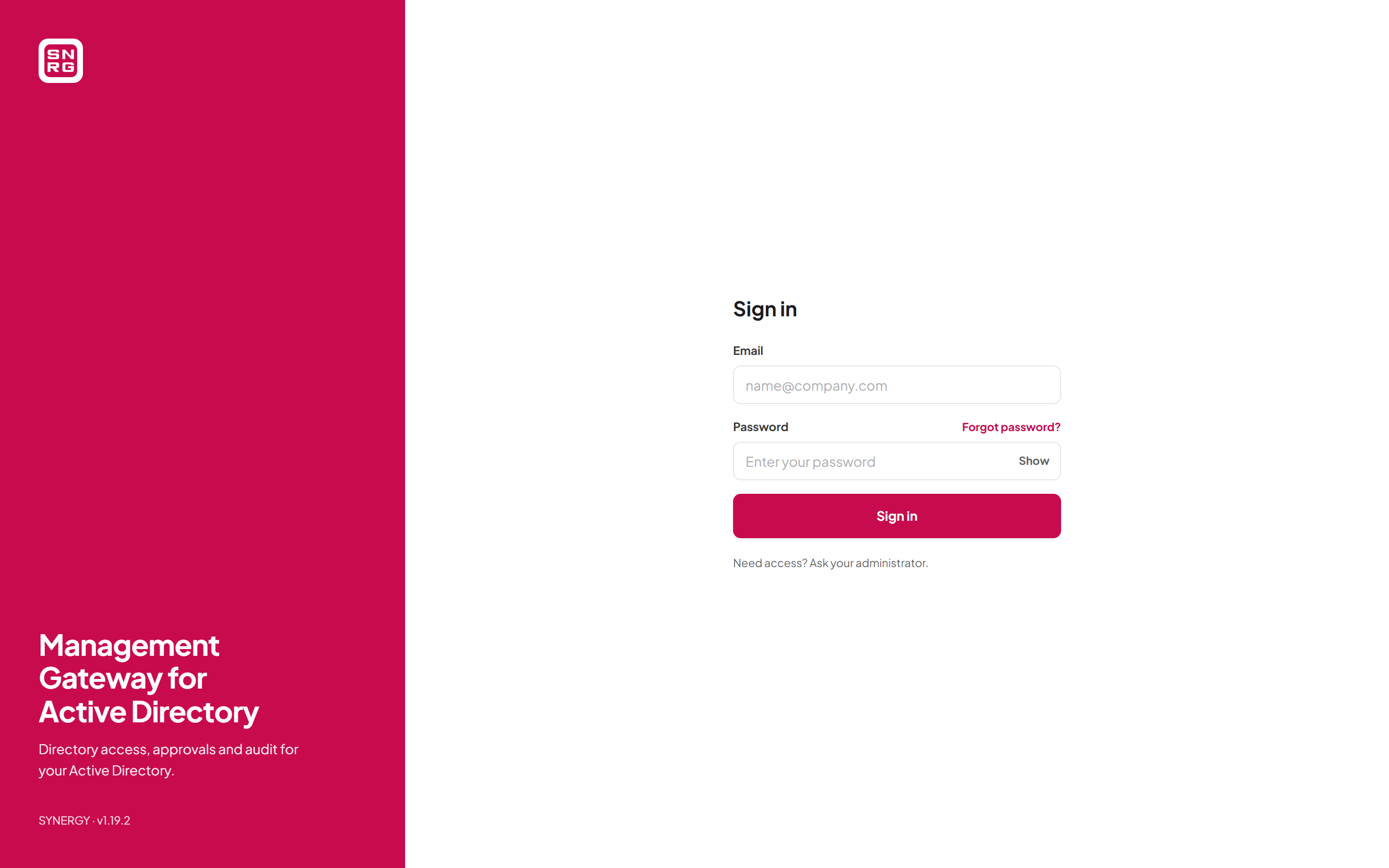
The page has two halves. The left-hand panel shows the SYNERGY logo, the product name Management Gateway, the tagline "Directory access, approvals and audit for your Active Directory." and, at the bottom, the version you are running (for example SYNERGY · v0.177.2). The right-hand panel holds the Sign in form.
Signing in with a password
- In Email, type the email address of your account (for example
name@company.com). - In Password, type your password. Select Show to see what you typed, and Hide to mask it again.
- Select Sign in. While the request is running the button reads Signing in….
If either field is empty, the page says "Please enter both email and password". If the email address or the password is wrong, the page says "Invalid email or password". The message is deliberately the same whether the address does not exist, the password is wrong, or the account can only sign in through single sign-on, so the page never confirms to a stranger which accounts exist. If the server cannot be reached, the page says "Login failed. Please check your credentials."
If your password was right but your account has been deactivated by an administrator, the page says "User account is inactive". Ask your administrator to reactivate it (see Chapter 11, Users, roles and permissions).
Signing in with single sign-on
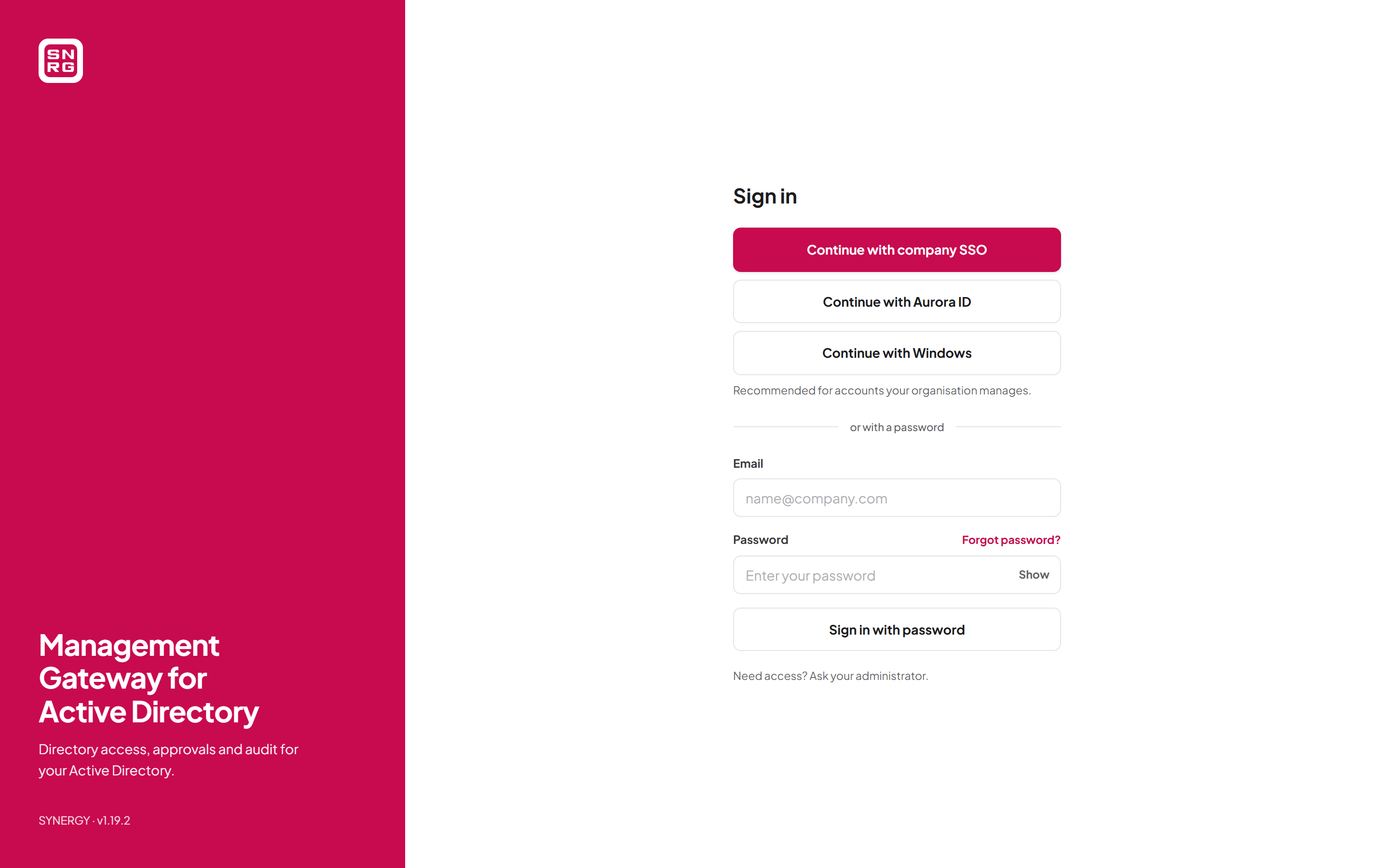
When single sign-on is configured, the sign-in buttons appear above the password form, followed by a divider reading or with a password. The hint under the buttons says "Recommended for accounts your organisation manages." The buttons you may see are:
| Button | What it does |
|---|---|
| Continue with company SSO | Starts a SAML sign-in with your organisation's identity provider |
| Continue with OpenID Connect | Starts an OpenID Connect sign-in. If the administrator gave the provider a name, the button reads Continue with followed by that name, for example "Continue with Aurora ID" |
| Continue with Windows | Signs you in with the Windows account you are logged in to on this computer |
The first single sign-on button is shown as the main (highlighted) action, and the password button changes its label to Sign in with password and becomes a secondary action. This is intentional: in an organisation that uses single sign-on, that is how most people are meant to sign in.
- Select the button for your organisation's sign-in method.
- Your browser goes to your identity provider. Sign in there as you normally would, including any multi-factor prompt your organisation uses.
- The identity provider sends you back to SYNERGY Management Gateway, signed in.
If you were trying to open a particular page before you were asked to sign in, single sign-on takes you back to that page afterwards.
Whether a first single sign-on sign-in creates an account for you automatically, or whether an administrator must create or link it first, depends on how single sign-on was configured; see Chapter 17, Single sign-on. Accounts that sign in only through single sign-on are shown as SSO-managed on the profile page (see "Identity" below).
Note: Two-factor sign-in in SYNERGY Management Gateway applies to password sign-in only. When you sign in through SAML, OpenID Connect or Windows, your identity provider is responsible for any second factor.
Signing in with Windows
Continue with Windows appears only when a System Admin has turned Windows sign-in on and the page is being served on one of the host names it is offered on. When you select it, your browser signs in with the Windows account you are logged in to, usually without asking for anything.
Windows sign-in has some conditions that are worth knowing, because if one is not met the sign-in fails rather than asking you for a password:
- Your Windows account must already be linked to your SYNERGY Management Gateway account by an administrator. Windows sign-in never creates accounts and never matches you by email address.
- Your Windows account must be in an Active Directory domain that the installation trusts, and it must not be disabled.
- The site must be opened over HTTPS, and on a computer and browser that are set up for Windows sign-in to the site (usually the site is in the browser's Local intranet zone).
If Windows sign-in does not complete, you return to the sign-in page with the message: "Windows sign-in did not complete. Your Windows account may not be linked to an account here yet, or your browser may not be set up to sign in with it. You can sign in with your password below, or ask your administrator."
Your roles can be kept in step with your Active Directory group membership. If your administrator has mapped Active Directory groups to roles, then each time you sign in with Windows the roles those mappings name are added or removed to match the groups you are in. Roles an administrator assigned by hand are not touched, and a change in Active Directory takes effect at your next Windows sign-in. See Chapter 17, Single sign-on, for the administrator's side.
Too many attempts
The sign-in page is protected against repeated guessing in two separate ways.
Rate limiting. If many sign-in requests arrive from the same network address in a short time, the page says "Too many login attempts. Please try again in Ns." (for example "in 30s") The form is disabled and the number counts down; when it reaches zero you can try again. If the server does not say how long to wait, the message reads "Too many login attempts. Please try again later."
Account lockout. Each account counts its own failed attempts. Five wrong passwords in a row, each within 15 minutes of the previous one, lock the account for 15 minutes. Wrong two-factor codes, and a wrong current password when changing your email address on the profile page, count towards the same limit.
How lockout behaves:
- If more than 15 minutes pass after a failed attempt without another one, the count starts again from zero, so occasional typos spread over time never add up to a lockout.
- While the account is locked, even the correct password is refused. Because you have proved the account is yours, the page then says "Too many failed sign-in attempts. Try again later." A wrong password during a lockout gets the ordinary "Login failed" answer and does not extend the lockout.
- The lockout ends by itself after 15 minutes. Completing a password reset by email also clears it.
- Lockout never deactivates the account and never affects the account's API keys.
On the two-factor step, the messages are "Too many failed attempts. Try again in a few minutes." and "Your account is temporarily locked after too many failed attempts. Try again later."
Tip: If you are locked out and need to get in sooner, use Forgot password? (when it is available) to set a new password. That also clears the lockout.
When an account has no access
If you sign in successfully but none of your roles gives you access to any page of the console, you are signed out again and see "Your account has no access to this application. Contact your administrator." Ask an administrator to assign you a role that includes at least one workspace permission.
Last updated
Thank you for your feedback.