
19.3Platform backups
Last updated
The Backups screen (route /dashboard/backups, page title Platform Backups) protects the platform's own data: its settings, users, roles, policies, directory connections and audit trail. It does not back up Active Directory; directory objects are protected by your domain controllers' own backups and, for deleted objects, by the Recycle Bin (see Chapter 7, Deleted objects (Recycle Bin)).
Important: The Backups screen is available only while your active role is System Admin, and only in a browser session. API keys and AI agents cannot take, download or delete backups, because a database backup contains every credential the platform holds.
Two kinds of backup
| Configuration export | Database backup | |
|---|---|---|
| Contains | Settings, roles, policies and connections, and optionally operation history | The whole database |
| Credentials | No credentials – no passwords, secrets or keys | Contains every credential – directory passwords, email and single sign-on secrets, API key hashes |
| After a restore | Nothing can authenticate until passwords and keys are entered again | The installation is restored fully, secrets included |
| Stored | In the platform's database, or as files in the backup folder on SQLite | As a file in the backup folder |
The page shows one card for each kind, with its tag (No credentials or Contains every credential), a description, when it was last taken and where it is stored, a button to take one now, and its readiness.
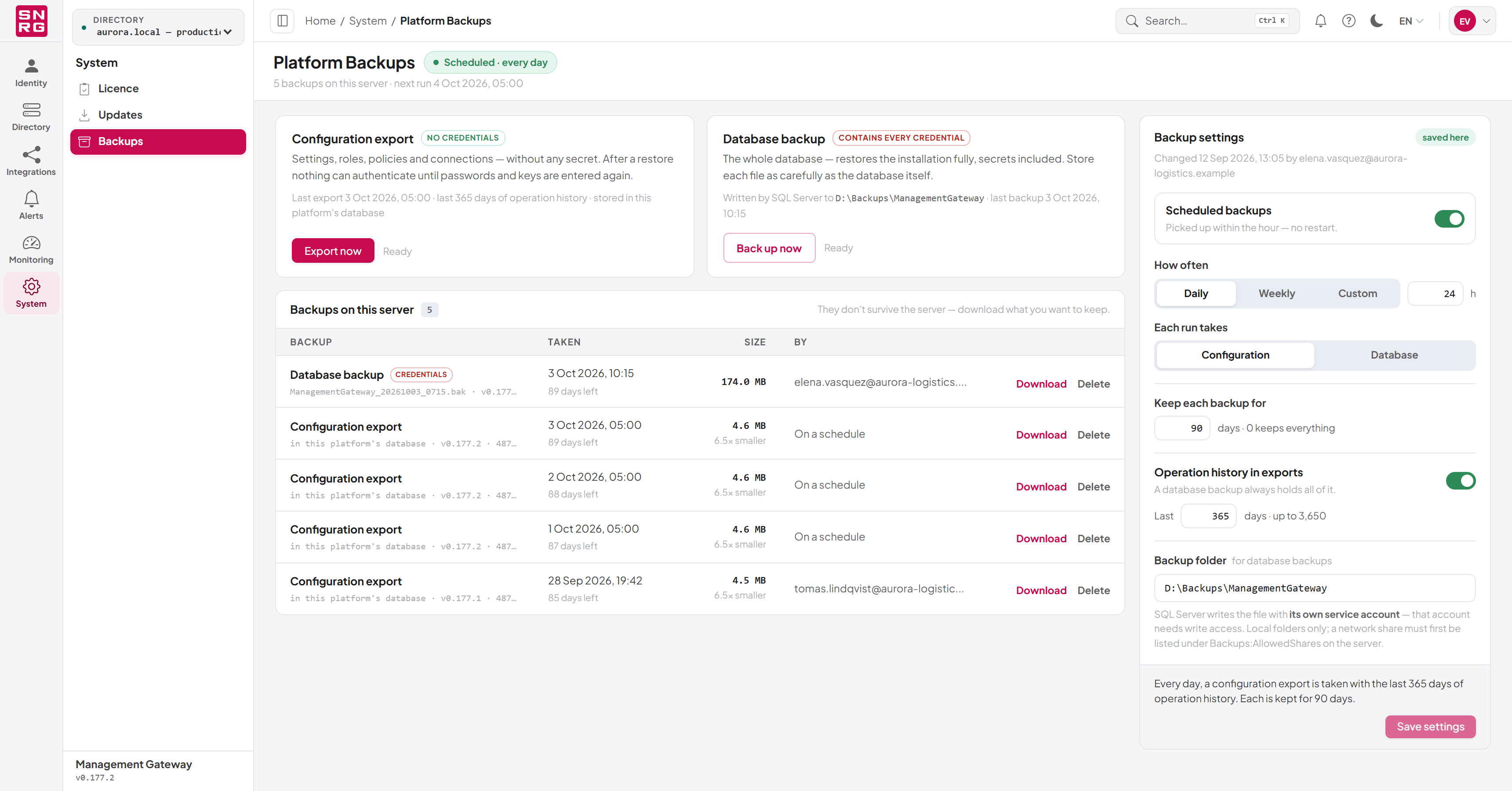
Configuration export
A configuration export captures the platform's configuration without any secret. It is safe to keep in more places than a database backup, and it is useful for reviewing or comparing configuration. Operation history can be included (see the backup settings).
An export is limited to 512 MB by default (Backups:MaxSizeMb). An export that would exceed the limit fails rather than storing a partial file.
Database backup
A database backup is a full copy of the platform's database, taken with the database's own backup mechanism:
| Database | How the backup is taken | Notes |
|---|---|---|
| SQL Server | BACKUP DATABASE … COPY_ONLY | The file is written by the SQL Server service account, which needs write access to the backup folder. The database login needs db_backupoperator or equivalent. Copy-only, so it does not interfere with your database administrator's own backup chain. |
| PostgreSQL | pg_dump, run on the platform server | pg_dump must be installed; set Backups:PgDumpPath to its full path if it is not found. |
| SQLite | VACUUM INTO | Produces a consistent copy even while the platform is in use. |
When SQL Server runs on a different machine, the backup folder must be a location both the SQL Server service account and the platform server can reach, or the backup can be taken but not downloaded from the console.
If the database cannot be backed up from the console, the card says why, for example This database cannot take a database backup from here or Needs a backup folder — set one in the settings →.
Taking a backup
To export the configuration:
- Make sure your active role is System Admin, and open System › Backups.
- On the Configuration export card, click Export now.
- Wait for the message Configuration exported. The new export appears in Backups on this server.
To back up the database:
- Open System › Backups. Make sure a backup folder is set (see Backup settings below).
- On the Database backup card, click Back up now.
- Read the warning in the Back up the database? dialog and click Back up database.
- Wait for the message Database backup created. A large database can take a while; the card says Working — this can take a while.
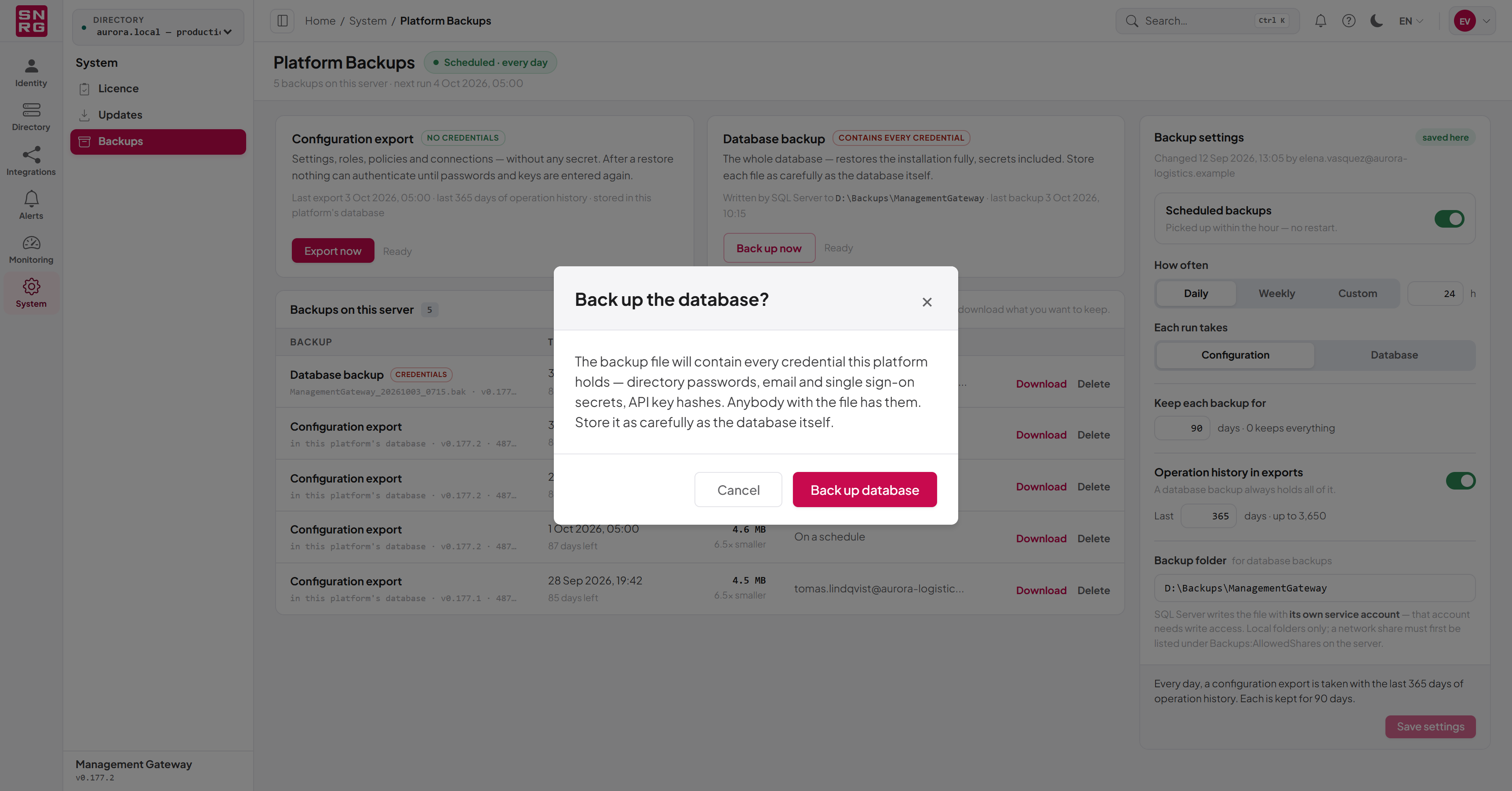
Important: Anybody with a database backup file has every credential the platform holds. Store each file as carefully as the database itself, and delete copies you no longer need.
The list of backups
Backups on this server lists every backup, newest first:
| Column | Shows |
|---|---|
| Backup | Configuration export or Database backup (tagged Credentials), with a note on what it holds, for example operations since …, without operation history or the whole database |
| Taken | When it was taken, and how long it is kept (N days left or kept until deleted) |
| Size | The file size, and how much smaller compression made it |
| By | The person who took it, or On a schedule |
Backups stored on the server do not survive the loss of the server. Download the ones you want to keep and store them elsewhere.
To download a backup, click Download on its row. Download is unavailable while a backup is still running, for a backup that failed (no file was stored), and for a backup stored in a location the platform no longer uses; hover over the button to see the reason.
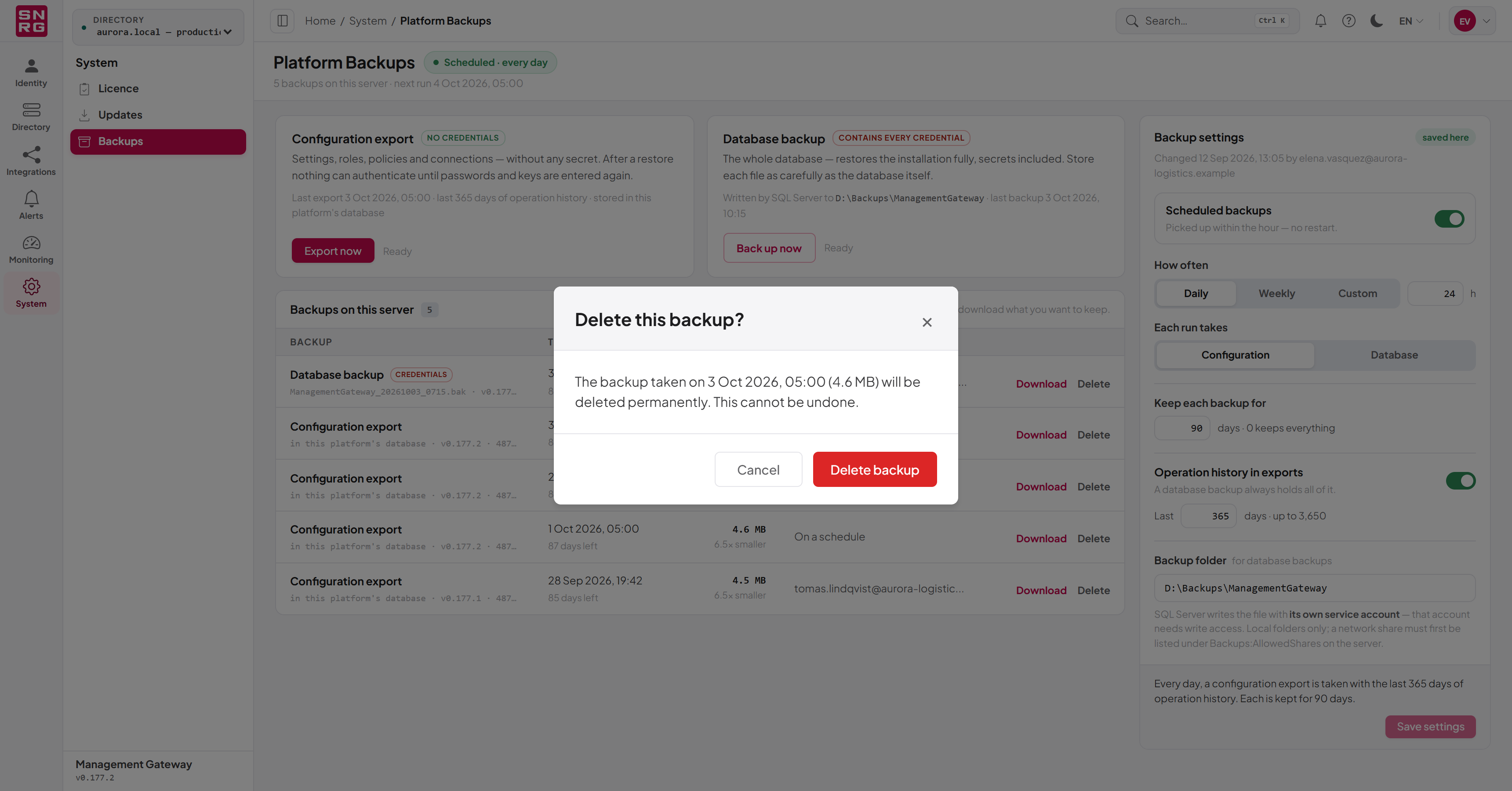
To delete a backup, click Delete on its row and confirm with Delete backup. The file and its record are removed permanently. A running backup cannot be deleted.
Backup settings
The Backup settings panel on the right of the page controls scheduled backups, retention, operation history and the backup folder. A chip at the top says where the current values come from: from config file (nobody has saved the panel yet, so the values come from the Backups section of the server's configuration file) or saved here with who changed them and when. Saving the panel once takes over from the file.
To change the settings:
- Open System › Backups.
- Change the fields in the Backup settings panel, described below.
- Read the summary at the bottom of the panel, for example Every day, a configuration export is taken with the last 365 days of operation history. Each is kept for 90 days. The panel also counts unsaved changes and marks invalid fields.
- Click Save settings. Cancel discards the changes.
Saved settings are picked up within the hour, without a restart.
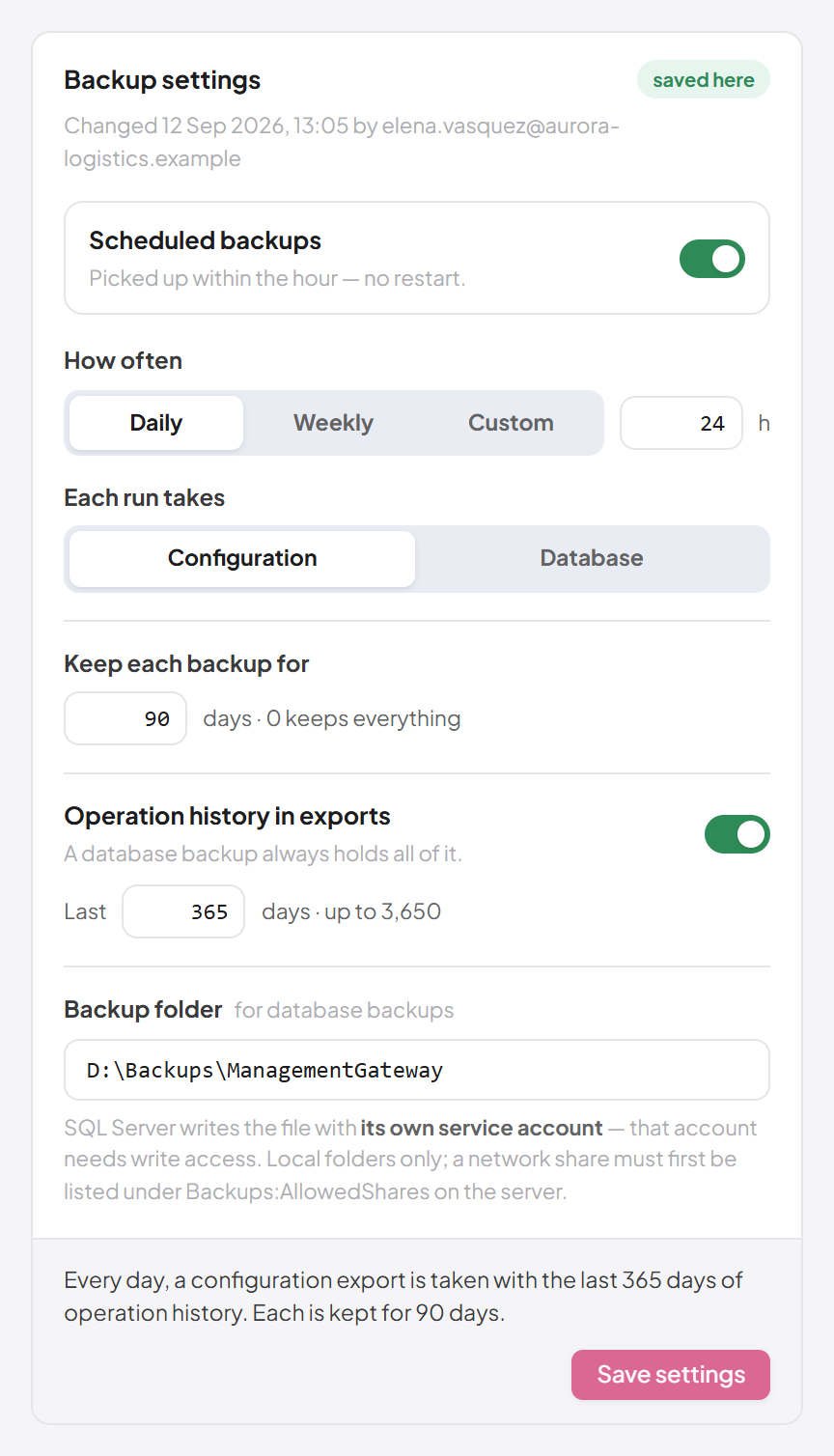
| Setting | Description |
|---|---|
| Scheduled backups | Whether backups are taken automatically. Off by default: backups are then taken only when somebody uses this page. |
| How often | Daily, Weekly, or Custom hours between backups, 1–720. |
| Each run takes | Configuration (a configuration export) or Database (a database backup). A scheduled database backup needs a backup folder, and every scheduled file will contain every credential. |
| Keep each backup for | Days to keep each backup, 0–3650 (default 90). 0 keeps backups until somebody deletes them. Older backups are removed automatically. |
| Operation history in exports | Whether configuration exports include the operations log. A database backup always contains all of it. |
| Days of operation history | How far back exported history goes, 1–1095 days (default 365). |
| Backup folder | Where database backups are written (and, on SQLite, every backup). A full path such as D:\Backups or a network share such as \\server\backups. At most 400 characters. Left empty, the folder from the configuration file is used. |
The folder must be writable by the account that writes the file: the platform's application pool account, or for a SQL Server database backup, the SQL Server service account, as the panel reminds you.
Network shares
For security, the panel accepts local folders only unless the server's configuration file lists the network shares that may be used. Every scheduled run signs in to the share with the server's machine account (and for SQL Server, its service account), so a share chosen in a browser could otherwise be used to capture that sign-in. To allow shares, add them to Backups:AllowedShares in the API's appsettings.Production.json:
"Backups": {
  "AllowedShares": [ "\\\\fileserver\\backups" ]
}
A listed share, or any folder under it, can then be chosen in the panel. The panel names the allowed shares and refuses any other.
Switching backups off
Setting Backups:Enabled to false in the configuration file switches backups off entirely. The page then shows a banner, Backups are switched off in the configuration file, and nothing is taken, on a schedule or from the page, whatever the panel says. Existing backups can still be downloaded and deleted.
Restoring
The console has no restore action. A database backup is restored with your database's own tools (for example SQL Server Management Studio for a SQL Server backup), by your database administrator, while the platform is stopped. Contact Synergy support before restoring an installation from a configuration export.
Auditing
Taking, downloading and deleting backups, and changing the backup settings, are recorded in the operations log as platform changes.
Last updated
Thank you for your feedback.