
5.6Editing a connection
Last updated
You need the adconnections:update permission.
To open a connection for editing, do one of the following on the Connections page:
- open the row menu and select Edit,
- double-click the row,
- on an unreachable row, select Edit in the Actions column.
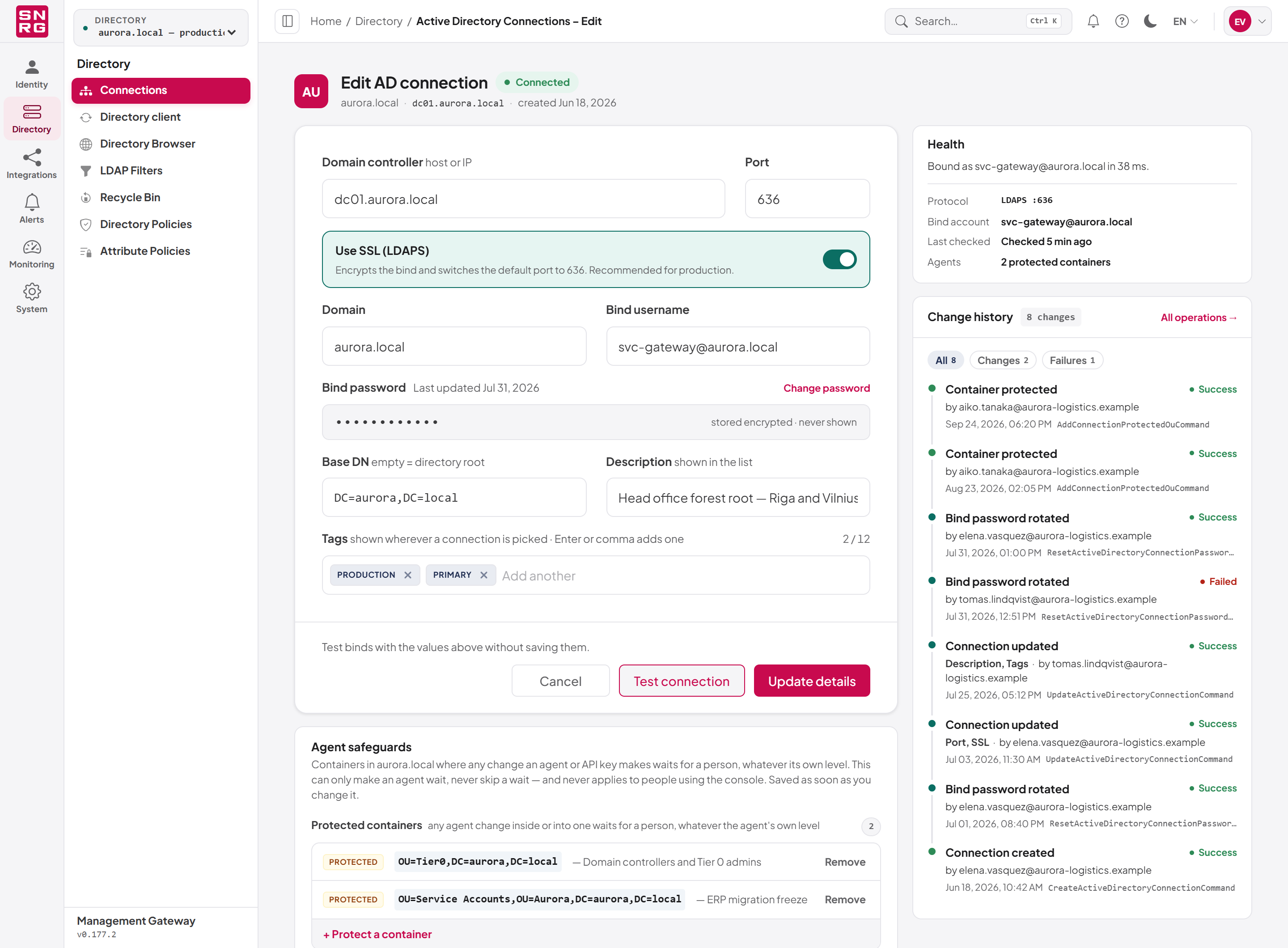
- The header shows the domain, the domain controller, the date the connection was created and its current health.
- The form on the left holds the connection's settings, with the Agent safeguards card underneath.
- The rail on the right holds the Health card and, if you hold
audit:list, the Change history panel.
Changing settings
To change a connection's settings:
- Open the connection for editing.
- Change any of Domain controller, Port, Use SSL (LDAPS), Domain, Bind username, Base DN, Description or Tags. The same rules apply as when creating (see the field reference in 5.4).
- Select Update details.
You see "Connection updated successfully" and return to the list. The change takes effect immediately: the platform drops any cached sign-in for the connection, so the next request binds with the new controller, account, transport and base DN.
The bind password is not part of this form. To change it, use Change password (see Rotating the bind password below).
Tip: After changing the controller, port or SSL setting, run Test on the list (or reopen the connection and select Test connection) to confirm the new settings work.
The Health card
The Health card in the rail summarises what the connection currently is:
- the message from the last check, or "No bind has been recorded for this connection yet.",
- Protocol — for example
LDAPS :636, - Bind account,
- Last checked,
- Agents — how many containers are protected for agents (see 5.8).
If you run a test on this screen, the card and the header pill show your result.
Rotating the bind password
When the service account's password changes in Active Directory, the stored password must be updated to match, or every request through the connection fails. The Bind password row of the form shows when the password was last updated ("Last updated <date>") or warns "never rotated since creation".
Important: Change password updates only the password the platform stores. It does not change the service account's password in Active Directory. Change the password in Active Directory first, then enter the new value here.
To rotate the bind password:
- Change the service account's password in Active Directory.
- Open the connection for editing.
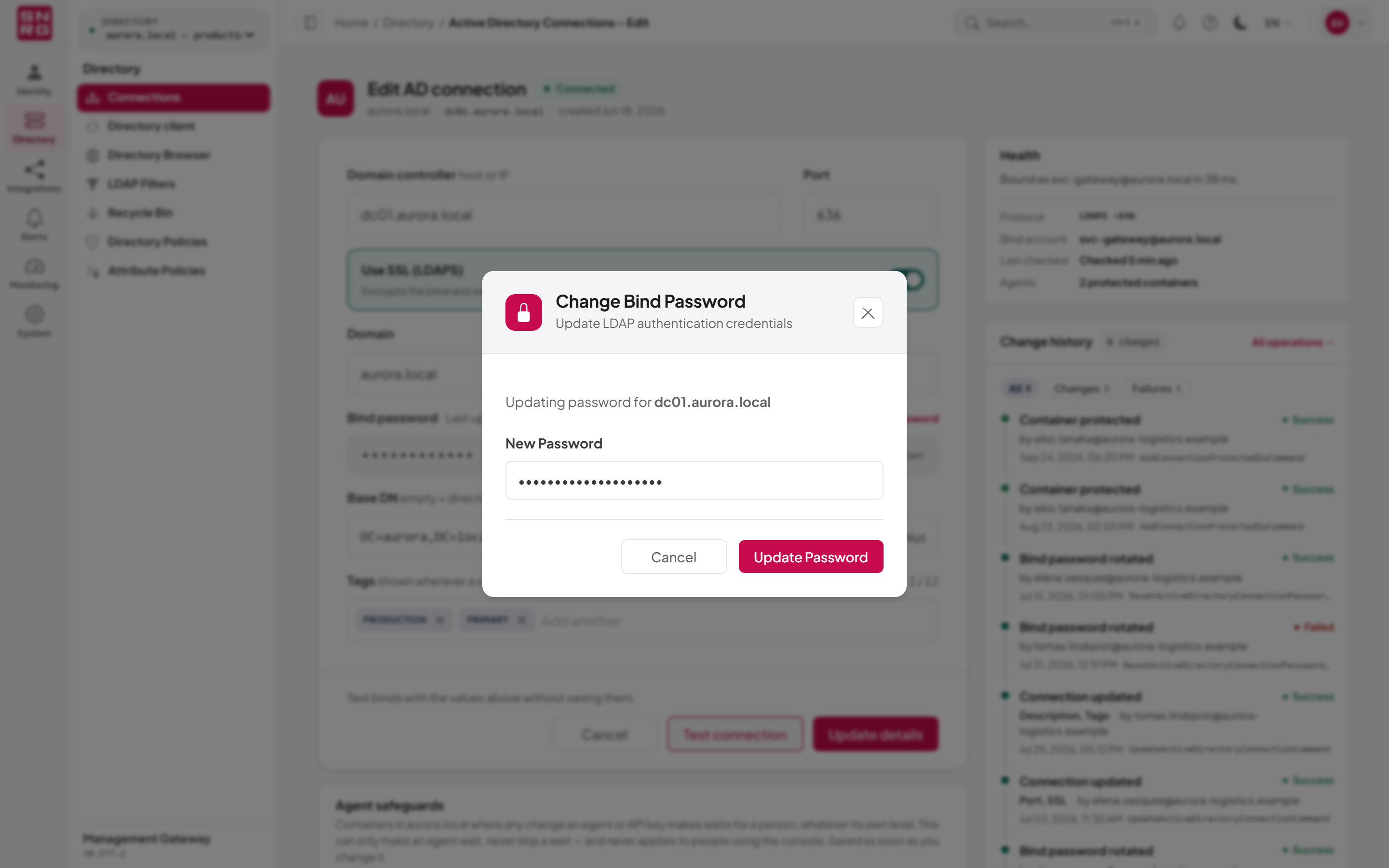
- Beside Bind password, select Change password. The Change Bind Password dialog opens, naming the domain controller.
- Enter the New Password. It must be at least 8 characters long.
- Select Update Password.
You see "Password updated successfully" and stay on the edit screen. The change history shows a Bind password rotated entry.
- The platform immediately stops using the old password: any cached credential and any pooled sign-in are discarded.
- The new password must differ from the stored one; entering the same value is refused.
- If the stored password can no longer be read (for example, after the server's encryption key was changed), rotation still works. Re-entering the password is the way to repair such a connection.
- The password value never appears in the change history or the operations log. Only the fact that it was rotated, by whom and when, is recorded.
The Change history panel
The Change history panel lists every recorded operation on this connection, newest first. You need audit:list to see it.
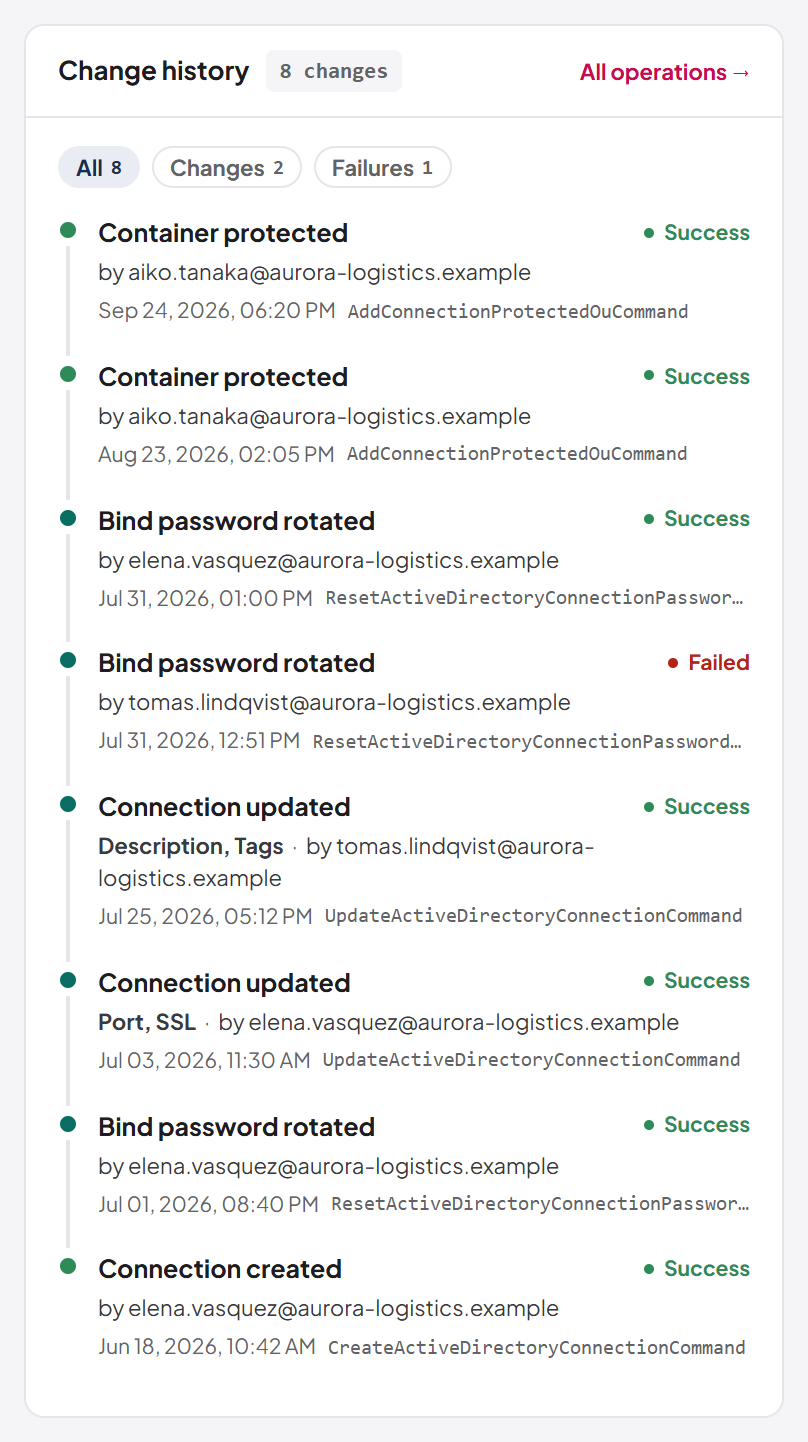
- Connection created
- Connection updated — the entry names the fields that changed, for example "Port, SSL" (any of domain controller, domain, bind username, SSL, port, base DN, description and tags)
- Bind password rotated
- Container protected and Container no longer protected (see 5.8)
- Connection deleted
Once the panel holds more than five entries, All, Changes and Failures chips appear to narrow the list. A refused edit or a rejected password rotation also appears here, marked as failed, which is often the quickest way to see why an attempted change did not take. If many operations exist, the panel says "Showing the N most recent of M operations"; select All operations → to open the full operations log (see Chapter 9, Operations log, approvals and waiting operations).
If the panel reads "No recorded changes", nothing has changed since the connection was created.
Note: In the operations log, changes to a connection are filed under that connection, not under the directory you happened to be working in. An administrator whose role is bound to specific connections therefore sees connection-management entries only for the connections the role reaches.
Last updated
Thank you for your feedback.