
3.3Choosing a role
Last updated
If you hold more than one role, you choose one after signing in. The role you choose is your active role: its permissions are the ones that apply, and it decides which Active Directory connections appear in the workspace picker. You can switch to another of your roles at any time from the account menu (see Chapter 4, Working in the console).
If you hold exactly one role, it is selected for you and this page does not appear.
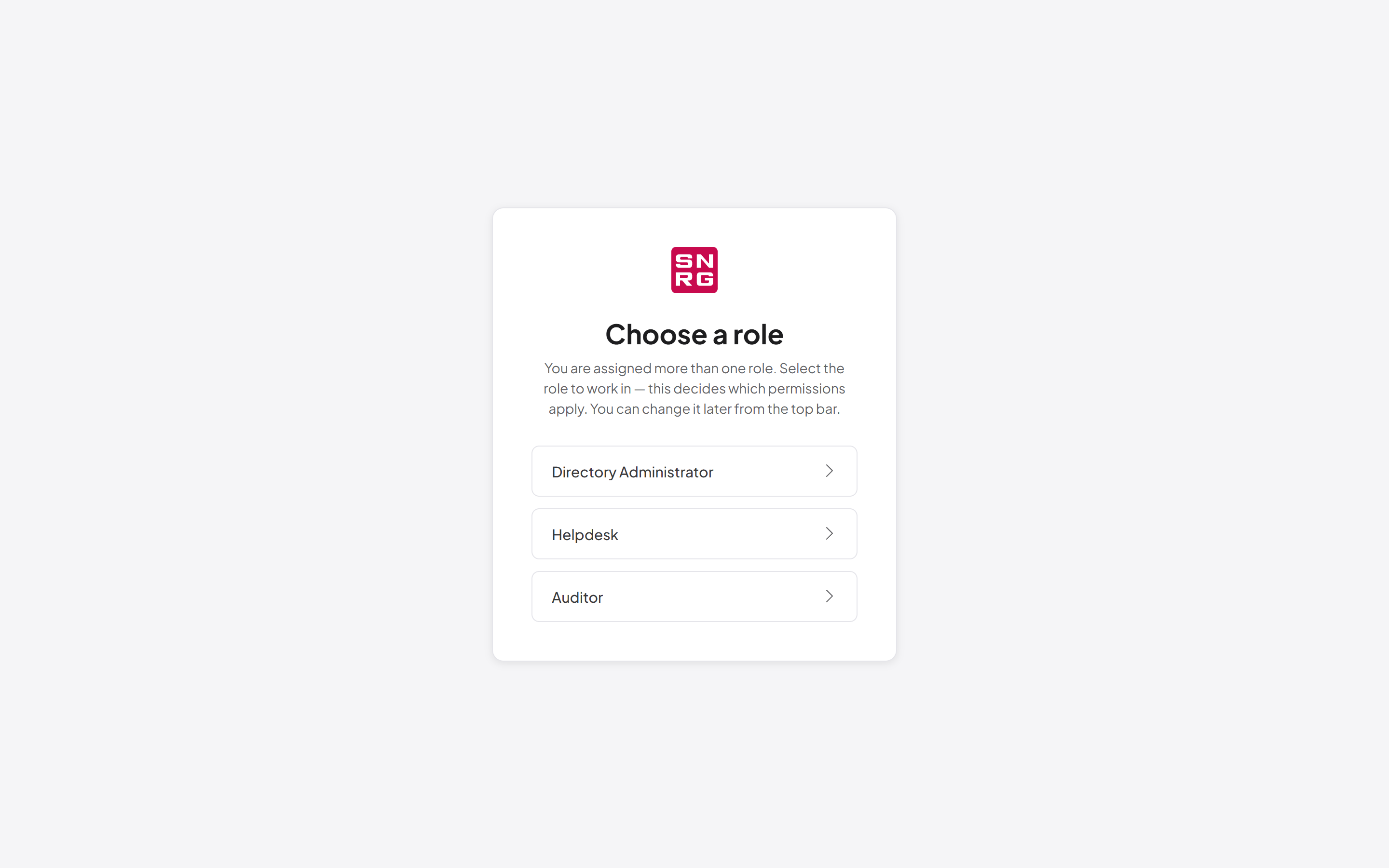
- On the Choose a role page, read the list of roles assigned to you.
- Select the role you want to work in. A spinner appears beside it while the role is activated.
- You are taken to the page you were originally trying to open, or otherwise to the role's default workspace (set by an administrator on the role). If the role has no default workspace, or you cannot open it, you land on the first page the role can reach.
If the role you choose has no access to any page, the page says "This role has no access to the application. Choose another role or contact your administrator." Choose another role.
A role that requires two-factor sign-in
An administrator can mark a role as requiring two-factor sign-in. If you choose such a role and your account does not have two-factor sign-in set up, the page says "This role requires two-factor sign-in. Set it up below, then choose the role again." and shows the two-factor setup directly on the page. Follow the steps in "Setting up two-factor sign-in from your profile" below. When it is done, the page says "Two-factor sign-in is on. Choose the role again." Select the role again to continue.
This check applies whenever you start using a role, not only at sign-in. It also applies when you switch roles from the account menu, and when your session is refreshed, so a requirement added to a role while you are signed in still takes effect.
Note: If your account signs in only through single sign-on (it has no password), this requirement does not apply to you, because your identity provider handles the second factor.
Last updated
Thank you for your feedback.